



When I first started using Ahrefs for my SEO projects, I often needed to track my monthly expenses, especially when I purchased extra credits for reports or audits.
Understanding how to view your Ahrefs invoice is important because it helps you monitor your subscription cost and any additional usage so you can manage your SEO budget more effectively.
After using Ahrefs for years, I have found that accessing invoices is simple once you know where everything is located. Ahrefs keeps all billing details in one place, including past invoices, payment history, and charge breakdowns.
In this guide, I will show you the exact steps I follow to view my Ahrefs invoice.
Steps to View Ahrefs Invoice
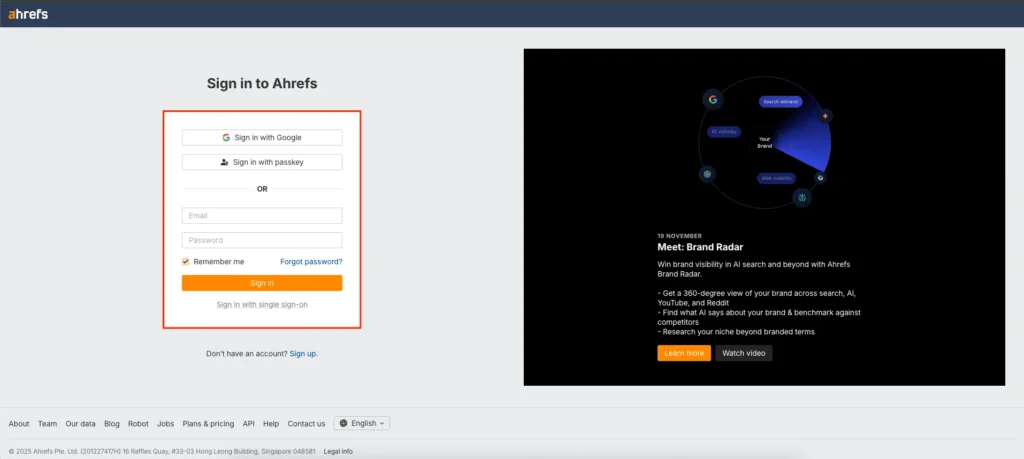
1. Log in to your Ahrefs account
Start by signing in to your Ahrefs dashboard with your account credentials. Make sure you are using the admin or billing-access account if you manage multiple users.
2. Navigate to Account Settings
Once you are inside the dashboard, click on your profile icon in the top-right corner. Select “Account Settings” to open your account management options.
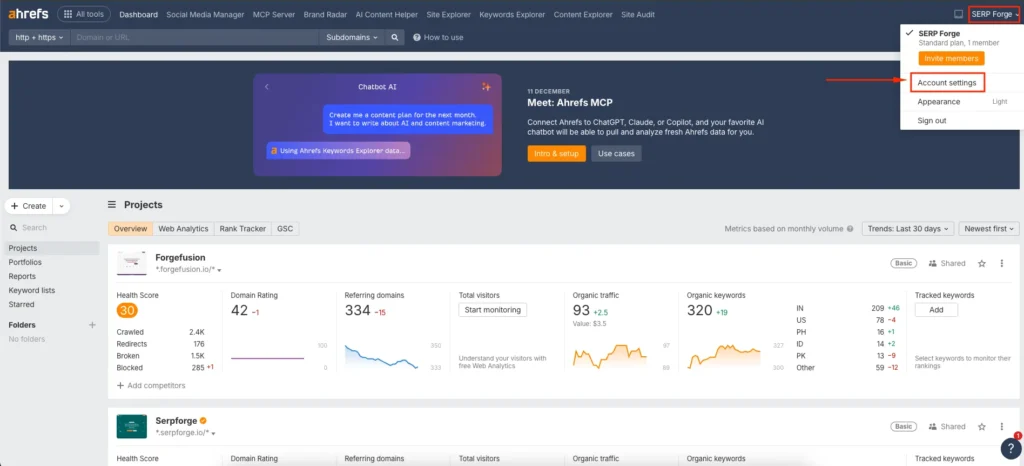
This is where Ahrefs keeps all user, subscription, and permission controls.
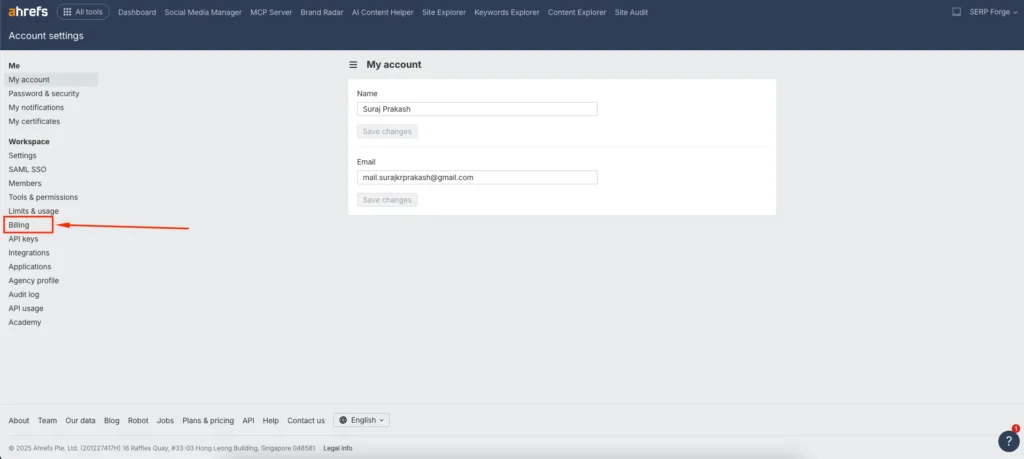
3. Click on the Billing section
Inside Settings, you will find a tab labelled “Billing.” This is where Ahrefs displays details such as your current plan, next billing date, payment method, and usage-based charges.
4. Go to the Invoices tab
In the Billing area, open the “Invoices” tab. Here you will see a list of all monthly invoices, including charges for your subscription plan and any additional credits you purchased.
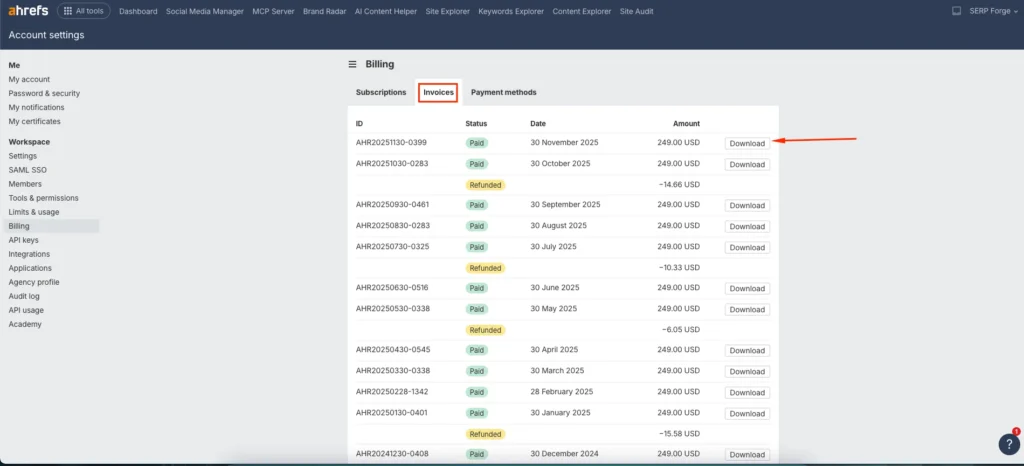
You can download each invoice as a PDF for bookkeeping, tax filing, or team reporting.
Conclusion
Knowing how to view your Ahrefs invoice helps you stay organized and aware of your monthly SEO expenses.
I check this section regularly to understand how much I spend on subscription renewals and extra data credits.
Once you follow these steps, you will always have quick access to your invoice history and can download any statement whenever you need it.
This simple process makes it easy to manage payments and keep track of your Ahrefs usage.
Frequently Asked Questions
Can I update my billing email in Ahrefs?
Yes, you can update your billing email from the Settings section. Go to Account Settings and change the email under profile or billing details, depending on your permissions.
Does Ahrefs send invoices automatically to my email?
Ahrefs sends payment confirmation emails, but you can always download full invoices from the Billing section in your account.
What should I do if my Ahrefs invoice is missing?
If an invoice does not appear in the billing panel, contact Ahrefs support. Sometimes delays occur when payments are being processed.
Can I view invoices for older subscription periods?
Yes, Ahrefs stores all past invoices in the Invoices tab, so you can download older billing statements anytime.
How can I change my payment method before the next invoice?
You can update your payment method in the Billing section by replacing your saved card or adding a new one before the next billing cycle.