


There are times when you need to re-evaluate your SEO tools, adjust your budget, or pause a project. I have been through this myself when managing multiple client accounts and subscriptions. When I no longer needed certain features or wanted to switch to another tool, cancelling my Ahrefs subscription was the practical choice.
You might cancel your subscription if you are not using Ahrefs regularly, switching platforms, reducing costs, or simply taking a break from ongoing SEO research. Whatever your reason is, the process is straightforward once you know where to look.
In this guide, I will walk you through the exact steps I use to cancel an Ahrefs subscription. You will learn where the cancellation option is located, how the confirmation process works, and what to expect after cancelling.
Steps to Cancel Your Ahrefs Subscription
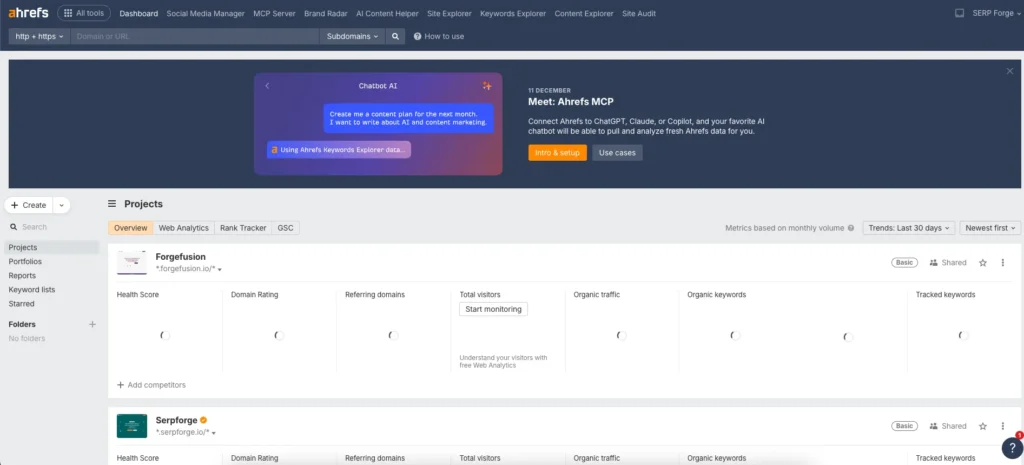
1. Access Your Ahrefs Dashboard
Start by logging into your Ahrefs account. Make sure you use the correct login that has admin or billing permissions, because only those accounts can manage subscription settings.
2. Open the Account Settings Panel
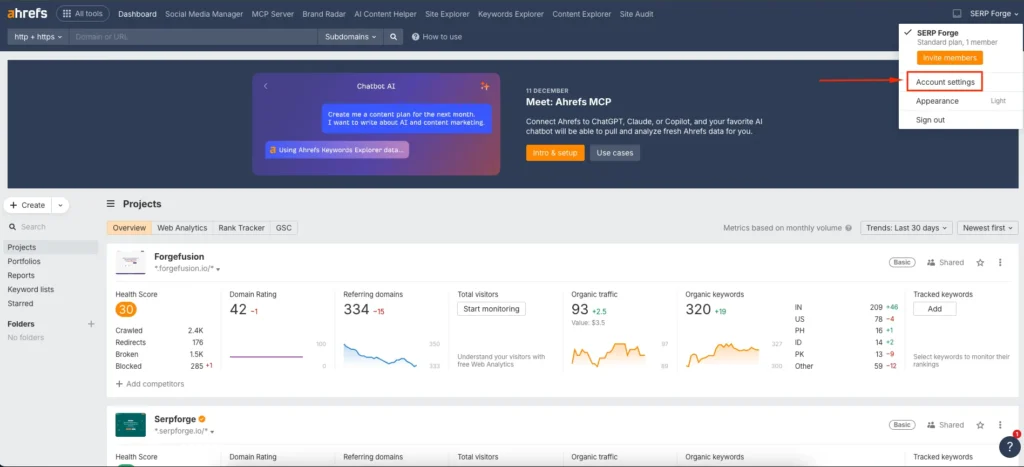
After logging in, click the profile icon in the top-right corner. Select Settings to open your account management section. This area includes your profile, workspace details, and account controls.
3. Find the Billing Option Inside Your Workspace
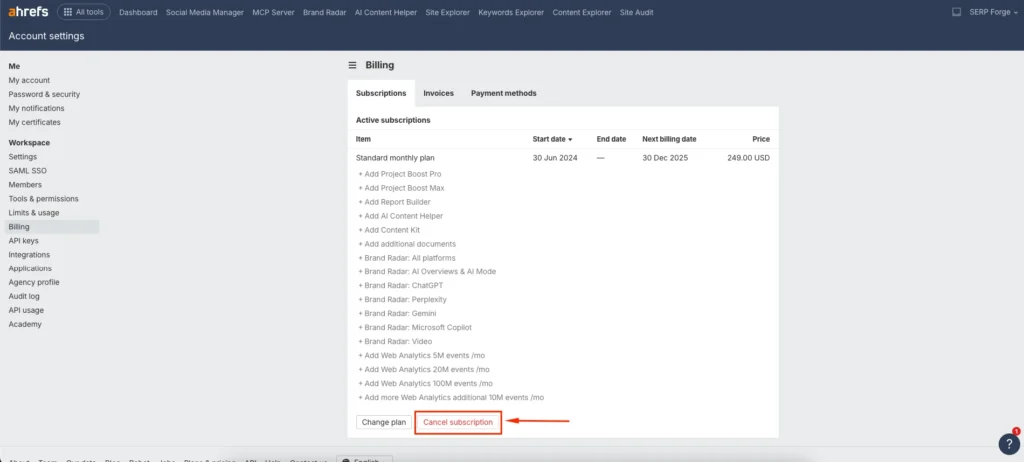
In the Settings panel, look for the Billing option within your Workspace. This section shows your active plan, payment method, renewal date, and usage information.

4. Select the Cancel Subscription Button
Inside Billing, you will see an option labeled Cancel Subscription. Click this button to begin the cancellation request.
Ahrefs may ask a reason for cancellation, which you can choose from the list provided.
5. Confirm the Cancellation Process
After selecting the cancellation option, Ahrefs will display a final confirmation message. Click Proceed to Cancel to complete the process.
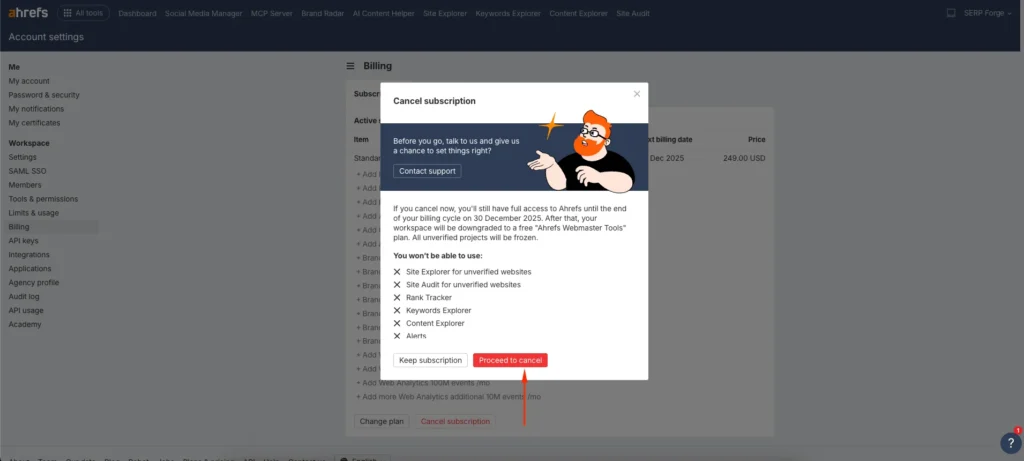
Once confirmed, your subscription will stop renewing after the current billing cycle. You will still have access until your paid period ends.
Conclusion
Learning how to cancel an Ahrefs subscription is useful when you want better control over your SEO expenses or when your workflow changes.
I have cancelled and reactivated my Ahrefs plan several times based on project demands, and the process has always been smooth.
Once you follow the steps above, you can manage your billing preferences confidently and decide when to pause or restart your plan as needed.

