




When multiple URLs display the same or similar content, search engines may struggle to determine which page should appear in search results. A canonical tag solves this by identifying the preferred version of a webpage.
It helps consolidate ranking signals, prevents duplicate content issues, and ensures search engines index the right URL, making it an essential part of technical SEO.
How Canonical Tags Work
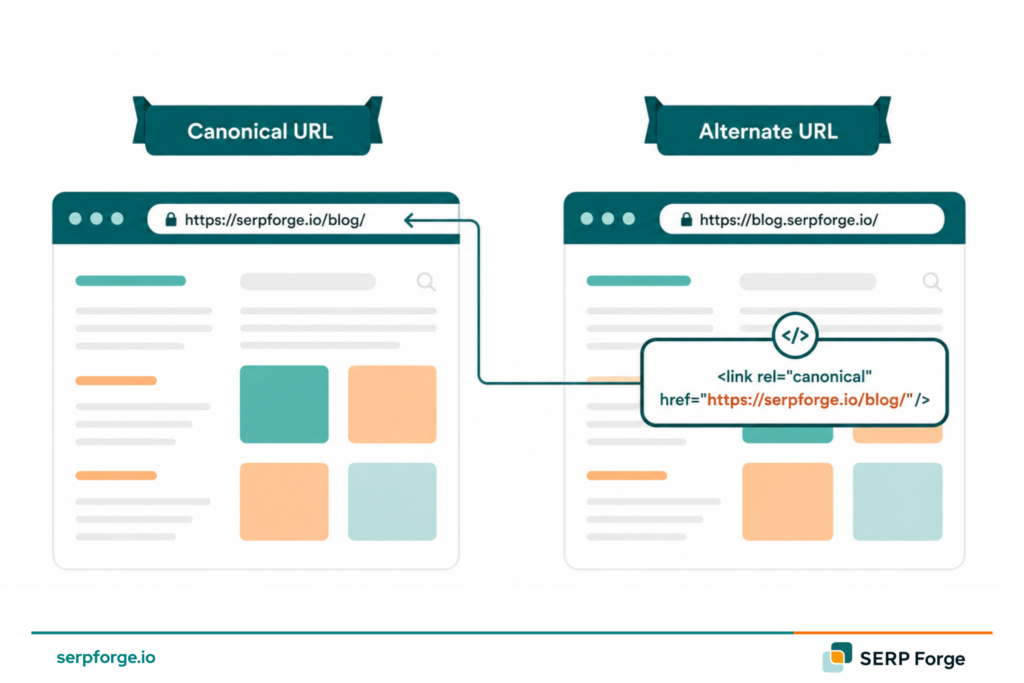
Canonical tags help search engines understand which page version should be treated as the primary one when similar or duplicate content exists across multiple URLs.
These tags are added inside the <head> section of a webpage and point to the preferred URL that you want search engines to index and rank.
The tag looks like this:
| <link rel=”canonical” href=”https://www.example.com/preferred-page/” /> |
When Googlebot or another crawler encounters this tag, it reads the signal as: “Treat the URL in the href attribute as the authoritative version of this page.”
Common scenarios where canonical tags are essential:
- E-commerce product pages with multiple URL variants (e.g., filtered or sorted category pages)
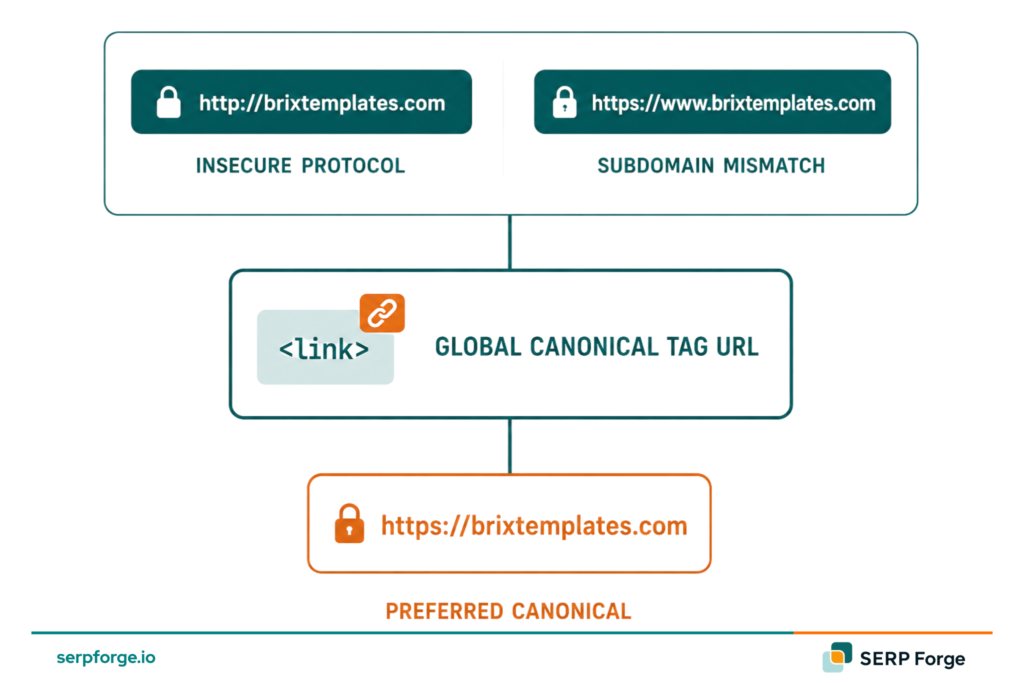
- Blog posts accessible at both HTTP and HTTPS, or with and without trailing slashes
- Syndicated content published on multiple domains
- Printer-friendly versions of pages
- Session ID parameters appended to URLs
Why Canonical Tags Matter for SEO
Duplicate content is not a penalty in the traditional sense, but it creates real problems that hurt your organic performance:
Split link equity: When external sites link to different URL variations of the same page, the ranking signals are divided. Instead of one strong page, you end up with several weak ones.
Crawl budget waste: Search engine crawlers spend a finite amount of time on your site. If they crawl dozens of duplicate URLs, they have less budget left for your unique, valuable content.
Index confusion: Without a clear canonical signal, Google may index the wrong version of a page, or rotate between versions inconsistently in the search results.
Diluted ranking signals: Engagement metrics, structured data, and internal link authority are all more powerful when consolidated on a single canonical URL.
According to Google Search Central, canonical tags help search engines consolidate signals from duplicate or similar pages into one preferred URL, improving indexing and ranking consistency.
How to Add Canonical Tags to Your Site
The method for adding canonical tags depends on your platform. Below are step-by-step instructions for the most widely used website builders and CMS platforms.
Setting Canonical Tags in WordPress
The easiest way to manage canonical tags in WordPress is with an SEO plugin.
Using Yoast SEO:
- Install and activate Yoast SEO.
- Open the page or post editor.
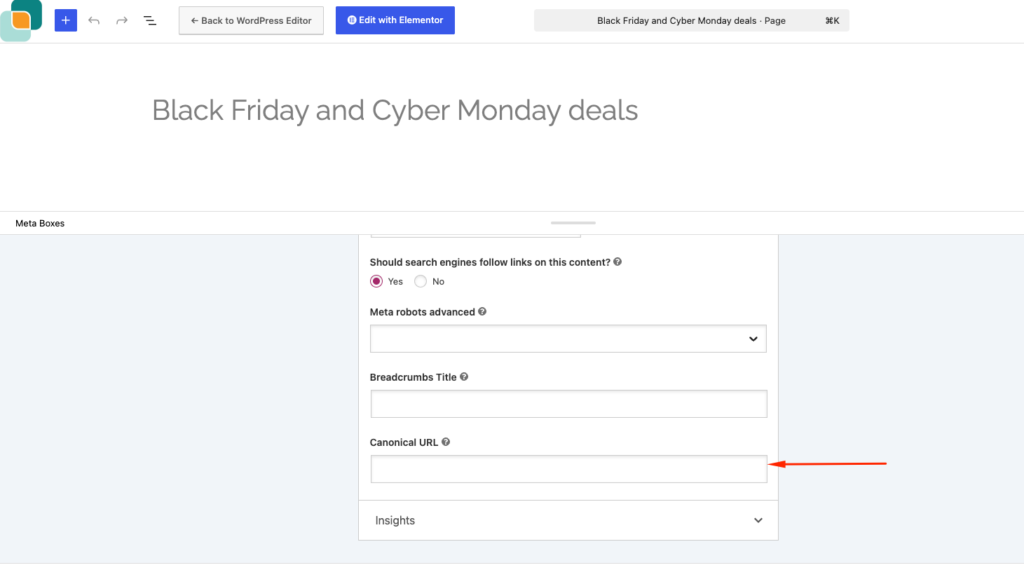
- Scroll to the Yoast SEO meta box and click the Advanced tab.
- Enter your preferred canonical URL in the Canonical URL field.
- Yoast auto-generates self-referencing canonicals for all pages by default, so you only need to edit this field when pointing to a different URL.
Using Rank Math: the process is nearly identical. Navigate to the SEO meta box in the editor, click the Advanced tab, and update the Canonical URL field.
Setting Canonical Tags in Wix
Wix handles basic self-referencing canonicals automatically. For custom canonical overrides:
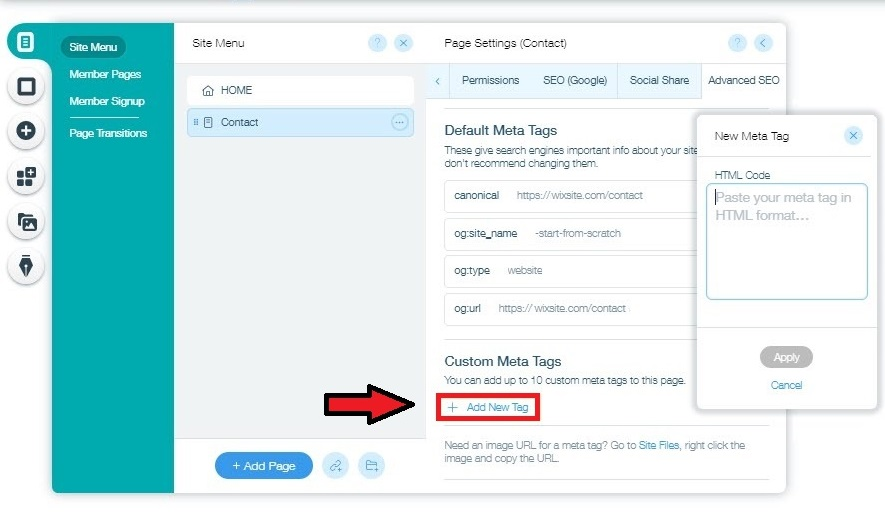
- Go to your Wix dashboard and open the page editor.
- Click the three-dot menu next to any page and select SEO Settings.
- Scroll to the Advanced SEO section.
- Add your canonical tag manually in the Additional Tags field using the raw HTML format shown above.
Setting Canonical Tags in Shopify
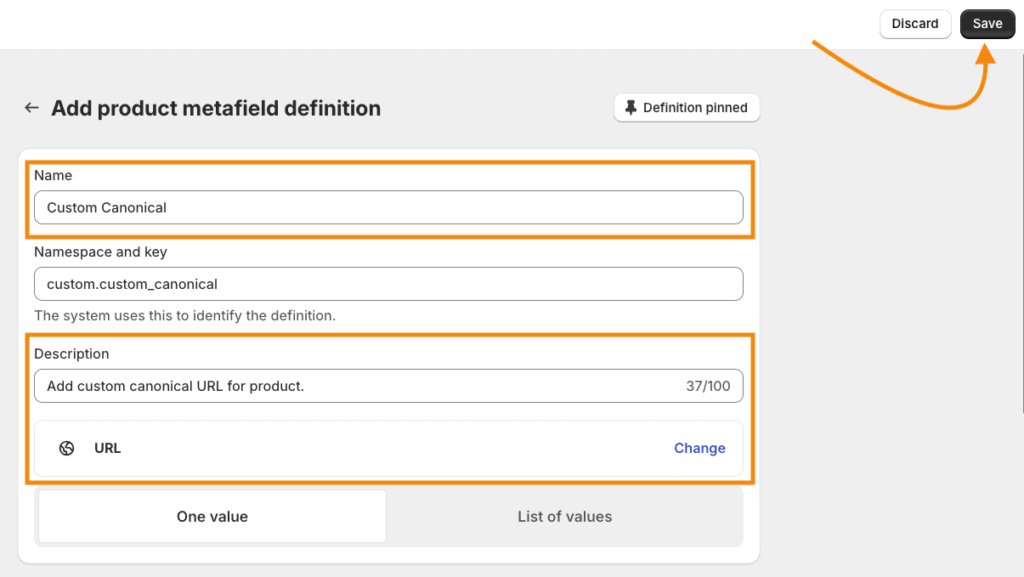
Shopify inserts self-referencing canonical tags on product pages, collection pages, and blog posts automatically through its default theme templates.
To add a custom canonical in Shopify:
- Go to Online Store > Themes and click Edit Code.
- Locate the theme.liquid or the relevant template file (e.g., product.liquid).
- Find the existing canonical tag and replace or supplement it with your preferred URL.
Caution: Editing Shopify theme files directly can break your storefront if done incorrectly. Always duplicate your theme before making changes.
Setting Canonical Tags in Squarespace
Squarespace applies self-referencing canonicals automatically.
For custom overrides:
- Go to Pages and select the page you want to edit.
- Click the gear icon to open Page Settings.
- Select the Advanced tab.
- Paste your canonical tag into the Page Header Code Injection field.
Setting Canonical Tags in HTML
If you manage a custom HTML site, add the canonical tag manually inside the <head> block of each page:
| <!DOCTYPE html><html lang=”en”><head> <meta charset=”UTF-8″> <title>Your Page Title</title> <link rel=”canonical” href=”https://www.example.com/your-preferred-url/” /></head> |
Make sure the canonical URL is absolute (including the protocol and domain), not a relative path.
How to Find and Fix Canonical Tag Issues on Your Site
Even well-implemented canonical tags can break over time as content changes, pages are moved, or templates are updated.
Canonical tag issues are more common than many website owners realize. According to a study, 53% of eCommerce websites analysed were found to have at least some instances of missing canonical tags on their online stores.
These four tools help you find problems quickly:
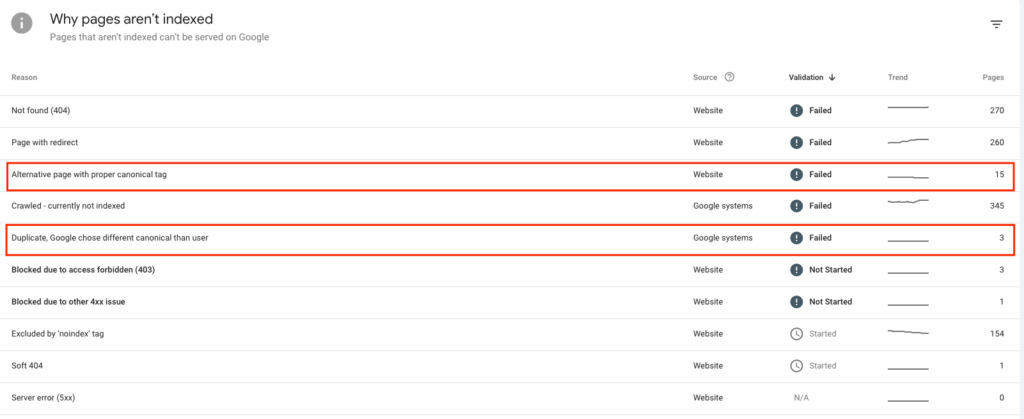
Using Google Search Console to Detect Canonical Problems
Google Search Console is your first stop for canonicalization data directly from Google.
Use the URL Inspection Tool to review canonical URLs:
- Go to the Index section and click on Pages.
- Look at the “Not indexed” reasons, particularly Duplicate without user-selected canonical and Alternate page with proper canonical tag.
- The first category means Google found duplicates but you did not specify a canonical.
- The second means Google respected your canonical and is indexing the preferred URL correctly.
For any page flagged as problematic, use the URL Inspection tool to see which URL Google has chosen as the canonical and whether it matches your intended choice.
Finding Canonical Errors with Screaming Frog
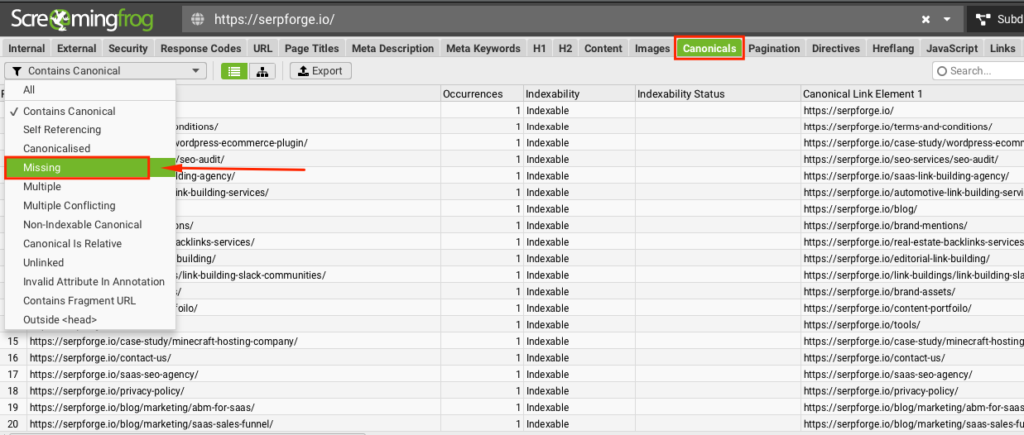
Screaming Frog is a desktop crawler that gives you a complete picture of canonical implementation across your entire site.
Use the Page Indexing report and URL Inspection Tool to review canonical selection and indexing status:
- Run a crawl of your domain.
- Navigate to the Directives tab and select Canonical.
- Filter for Missing, Non-Indexable, or Canonical Mismatch to surface problem pages.
- Export the data and prioritize fixing canonicals on high-traffic and high-value pages first.
Screaming Frog also highlights canonicals that point to redirected URLs, broken pages, or URLs that themselves have a different canonical.
Using Ahrefs Site Audit for Canonical Issues
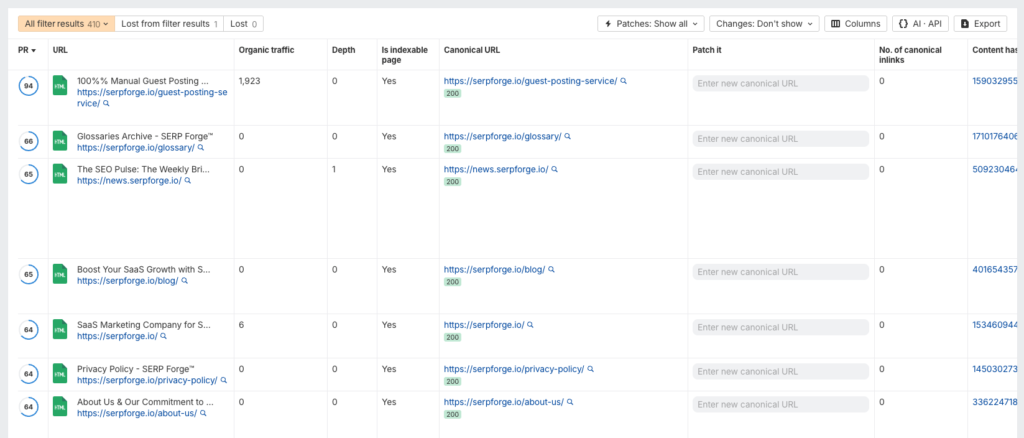
Ahrefs Site Audit checks for canonical errors as part of its full technical audit:
- Run a Site Audit from your Ahrefs dashboard.
- Go to the Issues tab and search for “canonical.”
- Common issues flagged include: pages without a canonical tag, canonical chains, canonical pointing to a non-200 page, and pages with conflicting canonical signals.
Using SEMrush Site Audit to Audit Canonicals
SEMrush Site Audit surfaces canonical issues in its technical crawl reports:
- Run a Site Audit from the SEMrush dashboard
- Navigate to Issues and filter by the Canonicalization category.
- SEMrush flags missing canonicals, canonical pointing to broken or redirected URLs, and pages with conflicting rel=canonical tags.
How to Fix Canonical Tag Problems
Once you have identified canonical issues, the fixes are generally straightforward:
- Missing canonical tags: Add a self-referencing canonical to every indexable page on your site.
- Canonical pointing to a redirect: Update the canonical tag to point directly to the final destination URL, bypassing the redirect.
- Canonical pointing to a non-200 URL: Fix the destination page or update the canonical to a live, indexable URL.
- Canonical chain (A canonicalizes to B, which canonicalizes to C): Update A to point directly to C, the final canonical URL.
- Conflicting canonicals: This happens when the canonical in the HTML differs from the one in the HTTP header. Reconcile both to point to the same URL.
- Rel=canonical ignored by Google: If Google consistently picks a different canonical than the one you specify, investigate the signals that are contradicting your tag: misaligned internal links, sitemap entries pointing to the wrong URL, or a 301 redirect from your preferred URL to a duplicate.
Common Canonical Tag Mistakes to Avoid
Even experienced developers make these errors:
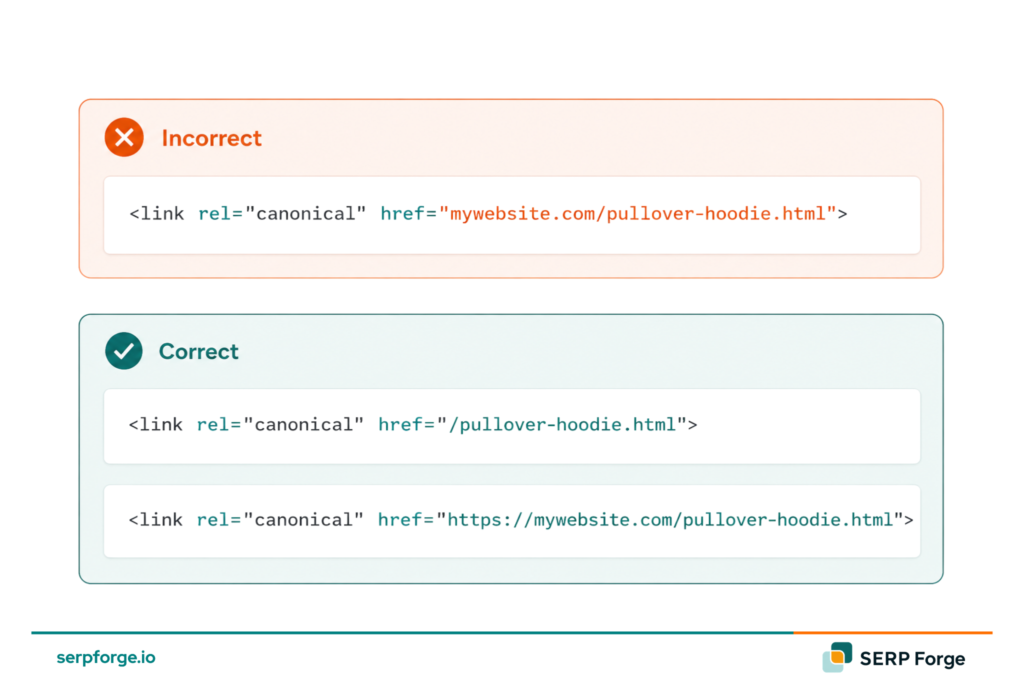
Using relative URLs: Canonical tags should always use absolute URLs including the protocol (https://) and domain.
Pointing a canonical to a no-index page: If the canonical destination is blocked by a noindex tag or robots.txt, you are signaling to Google that the preferred page should not be crawled or indexed which defeats the purpose entirely.
Canonicalizing paginated pages to page one: Paginated content (page 1, page 2, etc.) is not truly duplicate content. Canonicalizing all paginated pages to page one prevents search engines from discovering and indexing content deeper in the series.
Self-referencing canonicals on noindex pages: If you do not want a page indexed, use noindex. Adding a canonical is irrelevant if the page is being excluded from the index anyway.
Using canonical tags as a substitute for 301 redirects: When you permanently move a page, a 301 redirect is a stronger signal and also handles the user experience. Canonicals are best for non-redirect duplicate content scenarios.
Multiple canonical tags on one page: If a page has more than one canonical tag, search engines may ignore all of them. Ensure each page contains exactly one rel=canonical element.
Conclusion
The canonical tag is a deceptively simple HTML element with significant consequences for how your site performs in search.
It gives you control over how search engines interpret and consolidate duplicate or near-duplicate content, protecting your link equity, improving crawl efficiency, and ensuring the right pages appear in the search results.
Done correctly, canonical tags are invisible to your visitors but invaluable to your organic search performance.