


To analyze internal link opportunities in Ahrefs Site Audit, run a site crawl and review the Internal Link Opportunities report to find relevant pages that can be linked together.
Ahrefs identifies contextual linking suggestions based on your content, helping improve site structure, distribute link equity, and make it easier for search engines and users to discover important pages.
In this guide, I’ll walk you through how to check internal linking opportunities in Ahrefs using the Site Audit tool, based on a process I personally use and trust.
Steps to Check Internal Linking Opportunities in Ahrefs Site Audit
1. Go to Ahrefs Site Audit
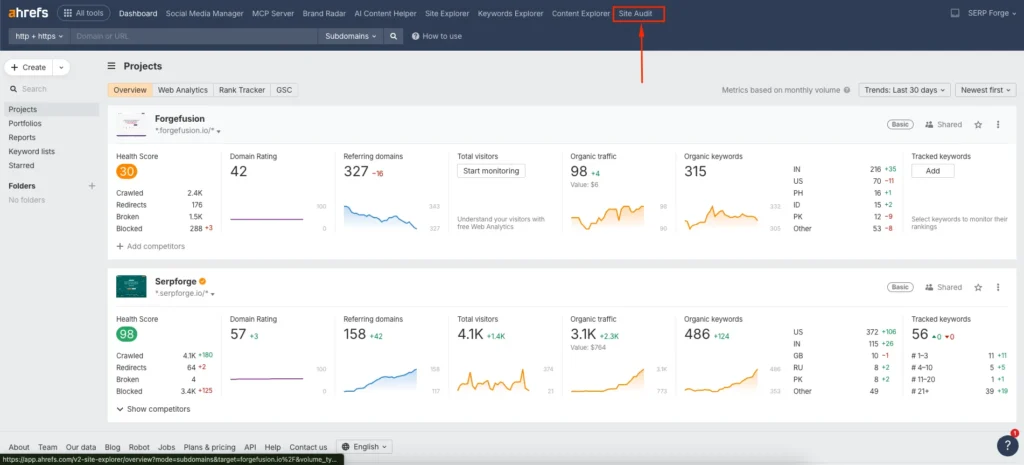
Log in to your Ahrefs account and click on Site Audit from the top navigation bar. Make sure your website is already added as a project. If the project is not set up, you won’t be able to access internal linking data.
2. Navigate to Your Project
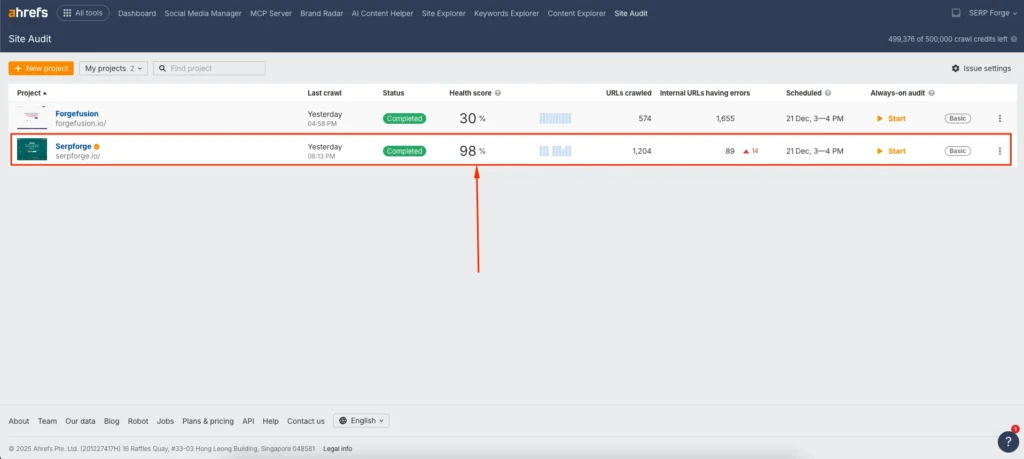
From the Site Audit dashboard, locate your website project and click on it. This will open the overview page where all crawl-related data is stored.
3. Open the Latest Crawl Report
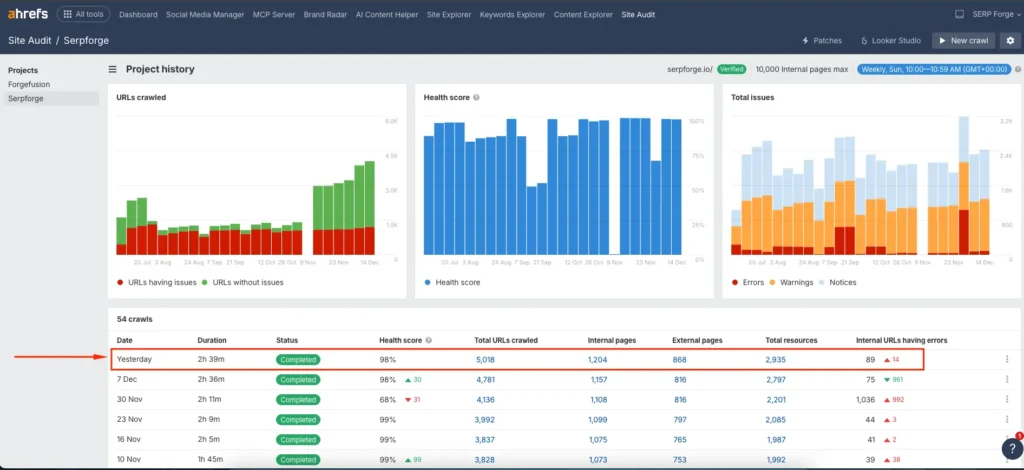
Click on the latest crawl report to ensure you are analyzing the most recent data. Internal linking insights depend heavily on up-to-date crawl information.
4. Go to Internal Linking Opportunities
In the left-hand sidebar, find and click on Internal link opportunities. This section highlights pages where Ahrefs has identified contextual internal linking possibilities based on keyword relevance and existing content.

5. Apply Filters
To refine the data, use the available filters:
- Source Page: Shows the page where the internal link can be added. This helps you identify content that already has contextual relevance.
- Keywords: Displays the anchor text or keyword Ahrefs suggests based on semantic relevance.
- Target Page: Indicates the page that would benefit from receiving the internal link, usually a page with ranking potential or limited internal links.
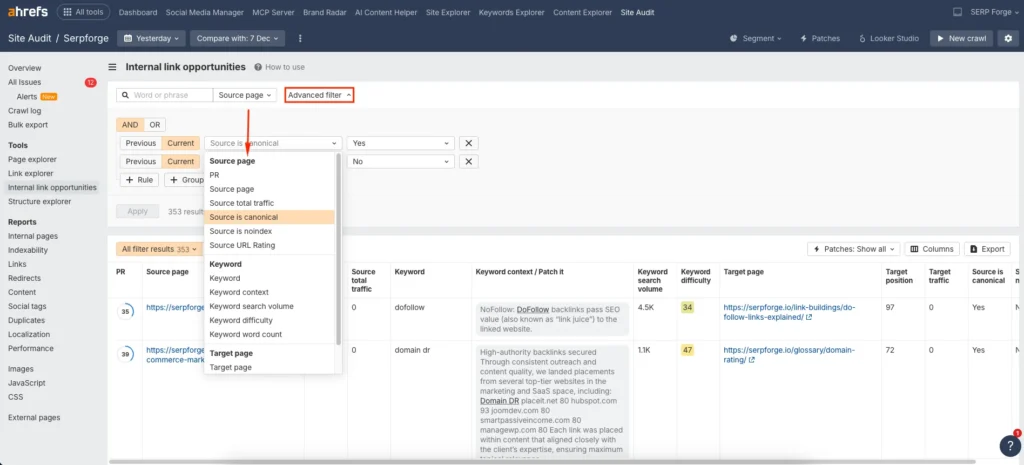
Using these filters together allows you to prioritize high-impact internal links rather than adding links randomly.
6. Analyze and Export the Data
Review the suggestions carefully and assess whether the recommended links make sense contextually.
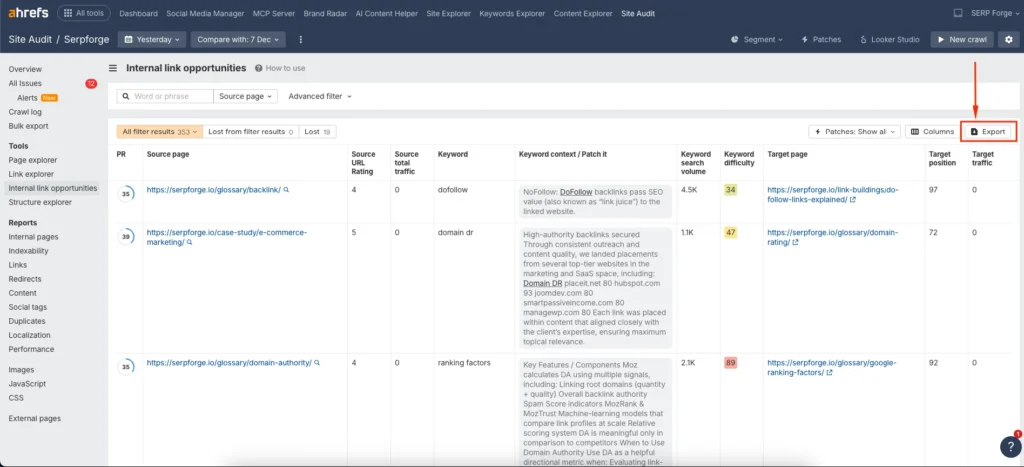
Once you’re satisfied, click the Export button in the top-right corner and download the report in your preferred format for implementation or sharing with your team.
Conclusion
Checking internal link opportunities in Ahrefs involves running a site audit, opening the latest crawl, reviewing internal link suggestions, applying relevant filters, and exporting the data for execution.
When you regularly check internal linking opportunities in Ahrefs Site Audit, you gain clear, data-backed insights into where internal links can improve rankings, crawlability, and overall site structure without relying on guesswork.

