


Setting up a project in Ahrefs helps me track keyword performance, backlink growth, technical issues, and overall organic visibility in one place. Once your Ahrefs account is active, creating a project lets you monitor any domain, subfolder, or even a single URL with consistent data.
You can set up a project in two ways. The first is by importing your site directly from Google Search Console. The second is by adding the domain manually.
Both methods work smoothly, and even users on the Ahrefs free plan get access to helpful insights like ranking trends, search performance, and basic backlink data.
Since I have set up dozens of projects for my own sites, I’ll walk you through the exact steps I personally follow. This guide will make the process easy, clear, and beginner-friendly, even if you’re using Ahrefs for the first time.
How to Manually Set Up a Project in Ahrefs
If you prefer full control or want to add a specific URL or subfolder, the manual setup option works best. These are the steps I follow when adding projects for new websites.
1. Create a New Project
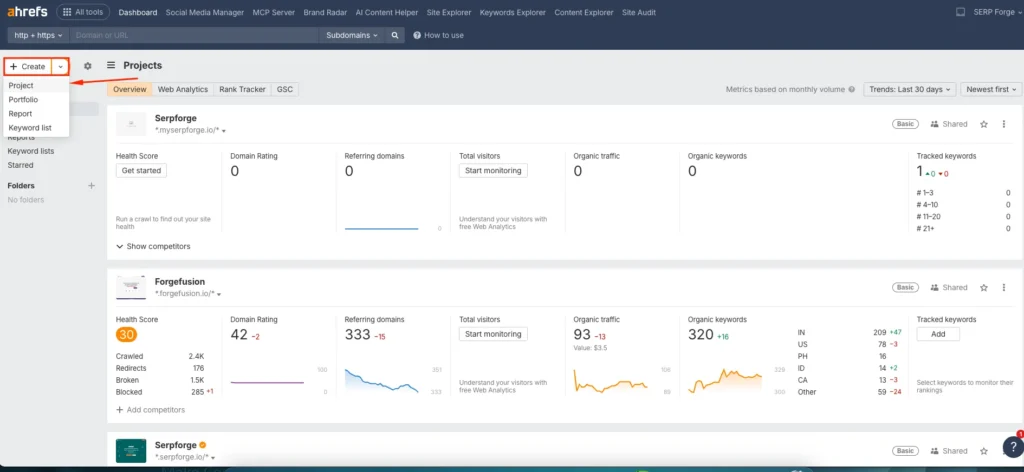
Go to the left navigation panel and click on the “Create” option. Select “Project” to start adding a new domain.
2. Select “Add Manually”
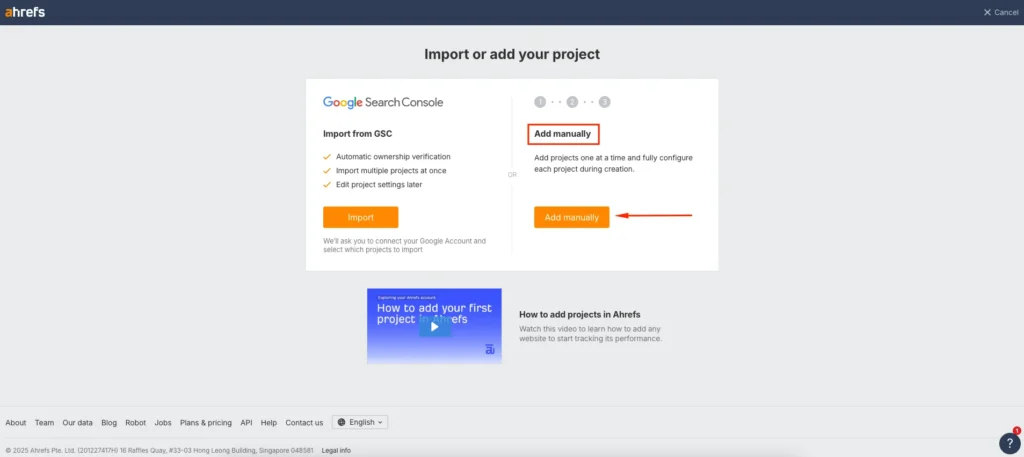
Ahrefs gives you two choices here. Choose Add Manually and click the button to continue.
3. Enter Your Domain and Project Details
Type the domain you want to track. You can choose different tracking scopes based on your needs:
- Domain to track the entire website
- Subdomain if you want something like blog.example.com
- Exact URL when you want data only for a single page
- Path if you want to track a specific folder, such as serpforge.io/blog/
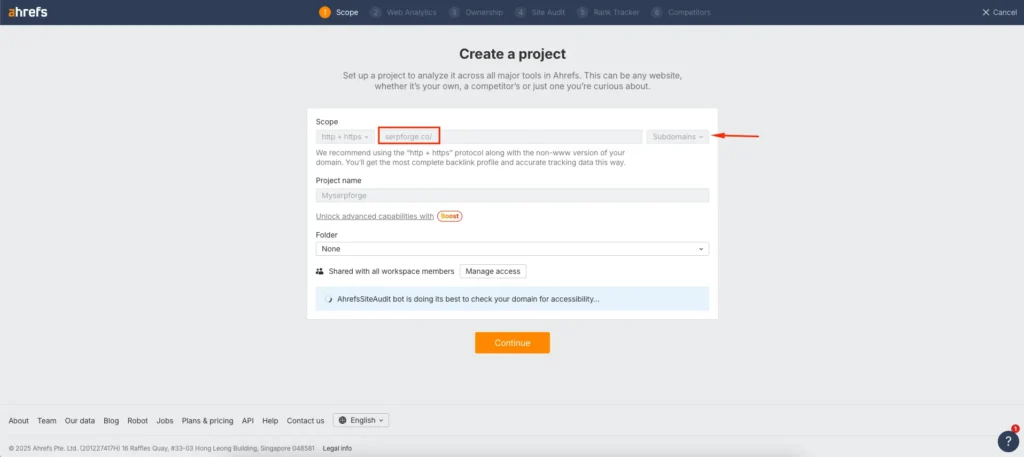
After selecting the correct option, click continue.
4. Skip Verification (Optional)
Ahrefs allows you to verify ownership by installing the Web Analytics snippet. If you want to track user behavior, copy the code and paste it inside the head tag of all pages.
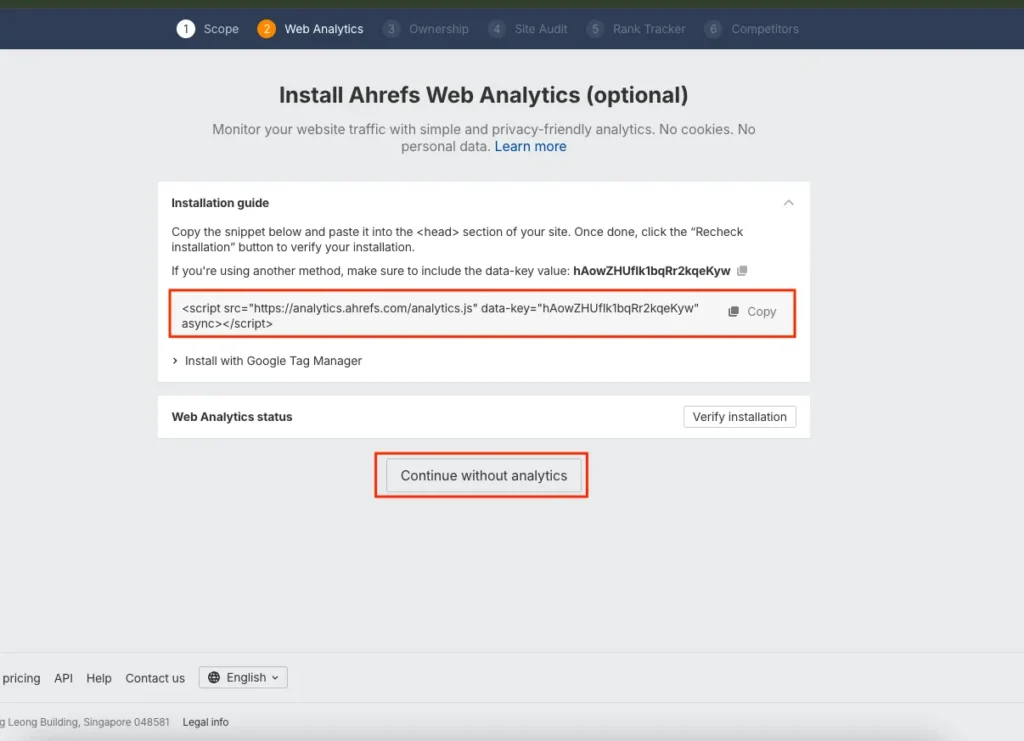
If you’re only interested in SEO data and don’t want to verify the site at this stage, click Continue Without Verification. I skip verification most of the time when I only need keyword or backlink tracking.
5. Schedule Your Site Audit
This is where you decide how often Ahrefs should crawl your site. I usually pick a weekly audit for active projects and a monthly schedule for low-maintenance sites. You can also set the exact crawl time.

Once you choose your preferences, click continue.
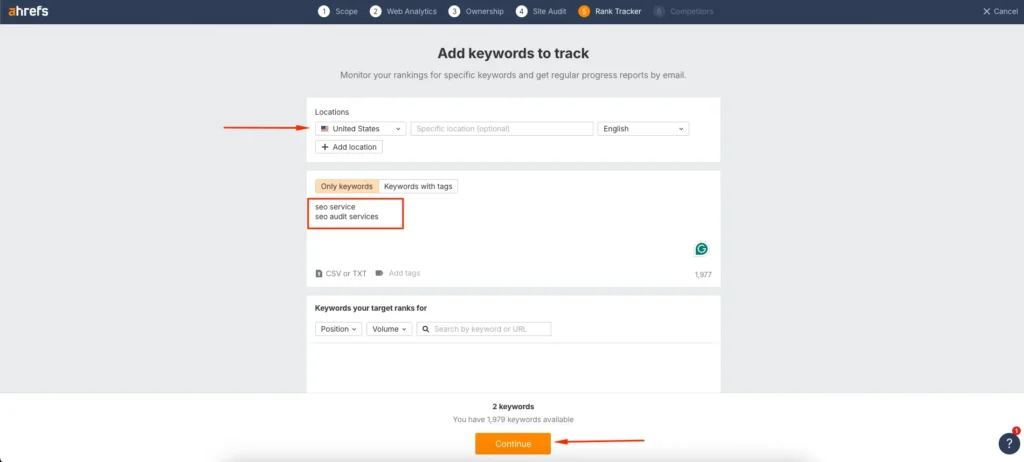
6. Add Your Keywords to Track
Select the target country and enter the list of keywords you want Ahrefs to monitor. You can add individual terms or import a bulk list. After adding them, click continue.
7. Add Competitors for Comparison
This is one of my favourite parts because it gives clear visibility into how your site performs against others. Add up to ten competitors whose traffic, backlinks, and keywords you want to compare.
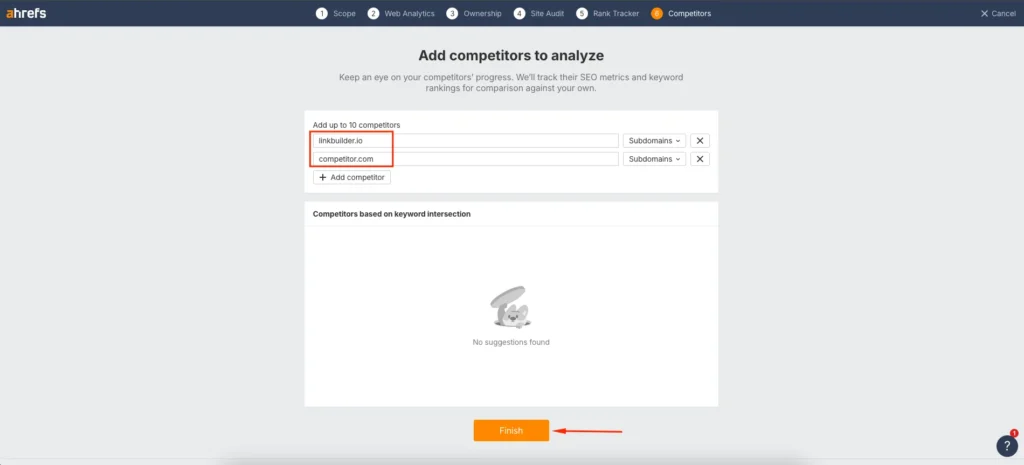
After entering the details, click Finish, and your project will be ready. Ahrefs will start gathering data, and you’ll see insights in a few minutes.
How to Set Up an Ahrefs Project Using GSC
If you already have your site verified in Google Search Console, this method saves a lot of time. I often use it when working on my own websites.
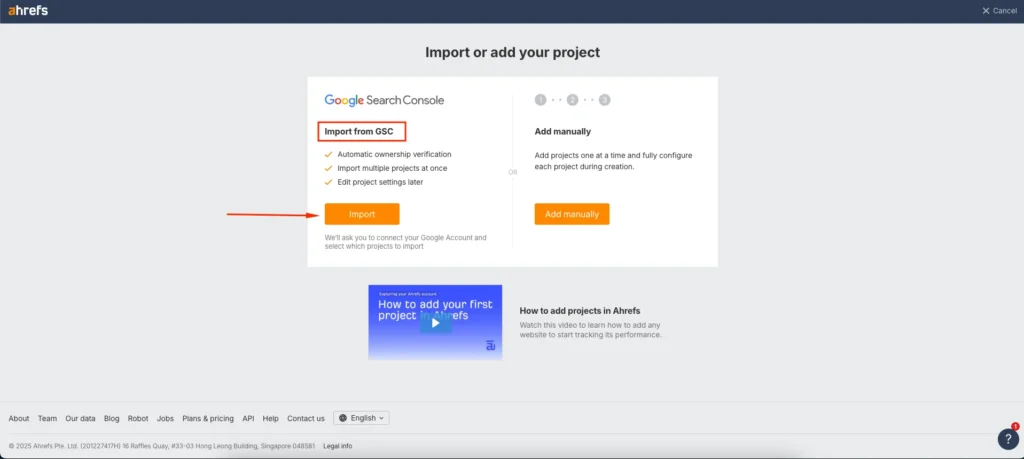
1. Select “Import from Google Search Console”
When you click on “Create Project,” choose Import from GSC instead of manual setup.
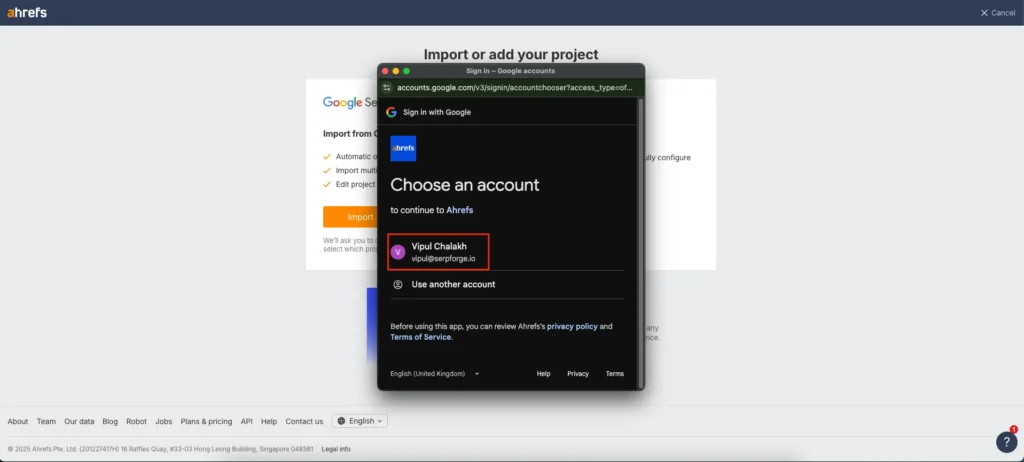
2. Connect Your Google Account
Log in to the Google account that contains the Search Console property.
3. Choose the GSC Property You Want to Track
Ahrefs will display a list of all your verified properties. Pick the domain you want to track.
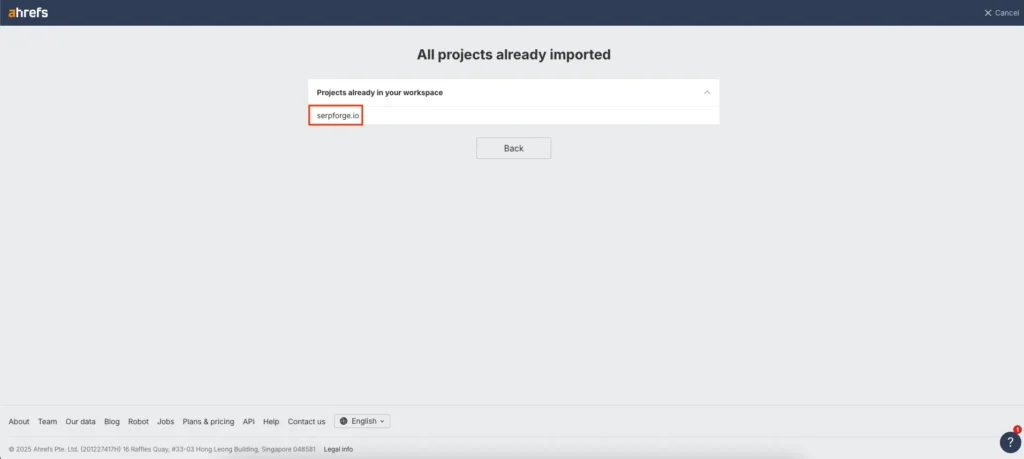
4. Complete Project Setup
Finish the setup, and your project will appear in the dashboard. You can later add keywords, competitors, or customise audit schedules at any time.
Conclusion
Setting up a project in Ahrefs is one of the most important steps when starting SEO analysis. Whether you add your domain manually or import it through Google Search Console, the setup process takes only a few minutes and unlocks powerful insights.
After working with Ahrefs for years, I can confidently say that the moment you set up a project in Ahrefs, you get a clearer picture of your website’s strengths, weaknesses, and growth opportunities.
Once your project is live, you can track rankings, monitor backlinks, run technical audits, and watch your organic performance evolve.

