


To build topic-based keyword lists in Ahrefs, start by researching a broad topic and grouping related keywords based on search intent and relevance.
Ahrefs helps you discover keyword variations, questions, and subtopics, making it easier to organize keywords into targeted lists for content planning, SEO campaigns, and topical authority building.
In this guide, I will walk you through the exact process I follow inside Ahrefs when creating keyword lists. The steps are simple, and once you start using them consistently, your entire SEO workflow becomes much more structured.
Steps to Create a Keyword List in Ahrefs
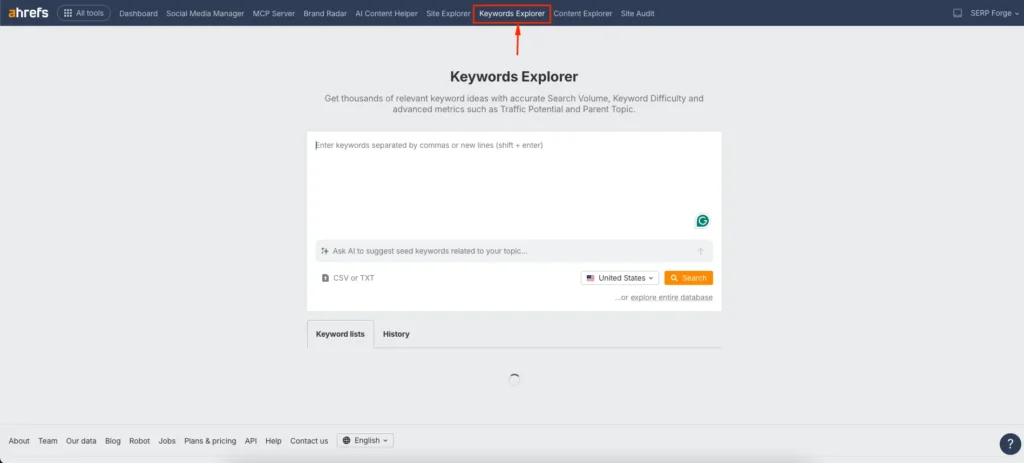
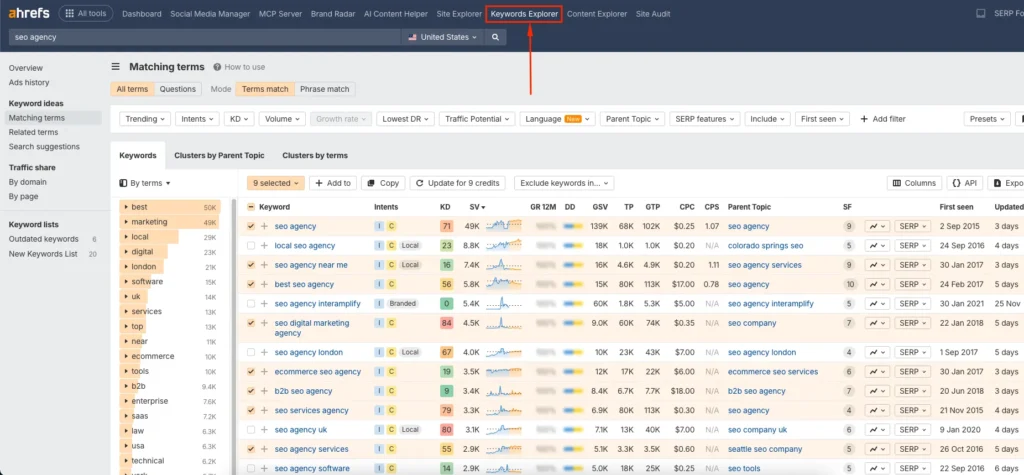
1. Navigate to Keyword Explorer
Log in to your Ahrefs account and go to the Keyword Explorer tool using the top navigation menu. This is where keyword gathering begins.
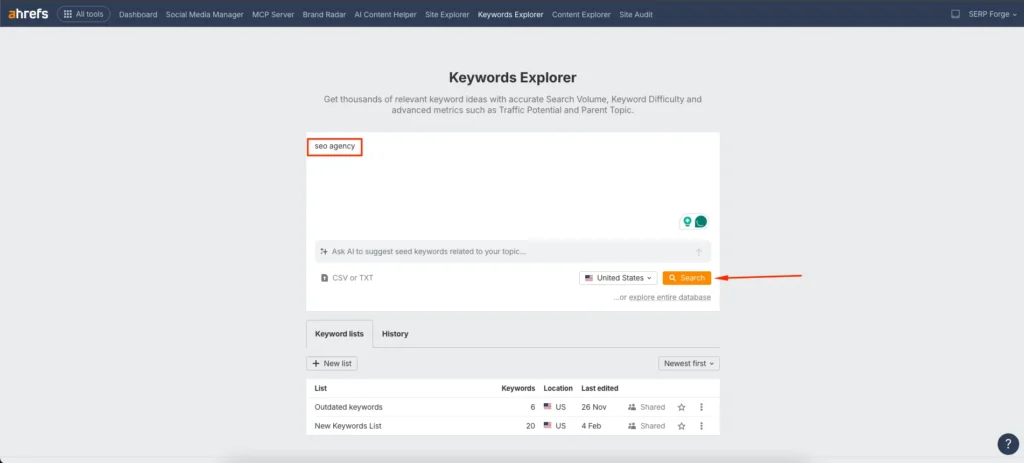
2. Enter the Main Keywords
Add your primary keywords into the search field. You can enter a single keyword or up to 100 at once. Click Search to generate keyword data and ideas.
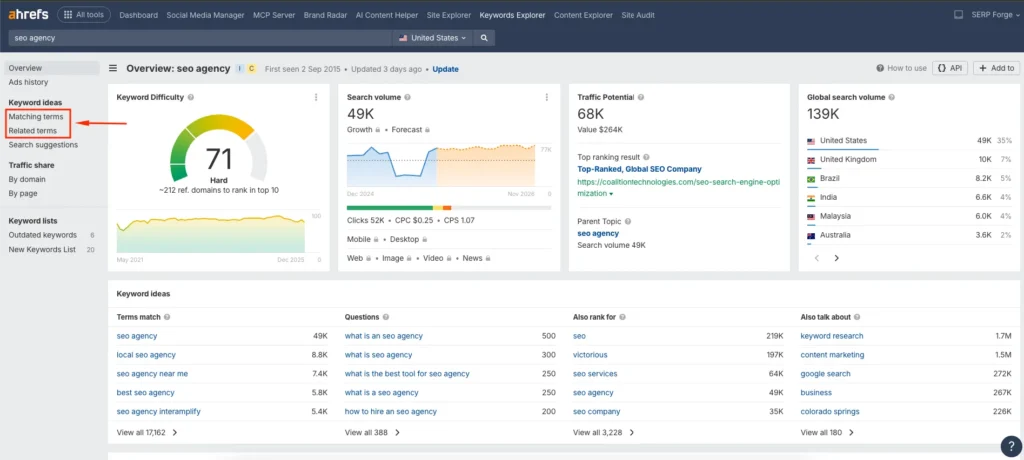
3. Click on Matching or Related Terms
From the left-side options, open Matching Terms or Related Terms. These sections help you discover keywords with similar meaning, user intent, and semantic relevance.
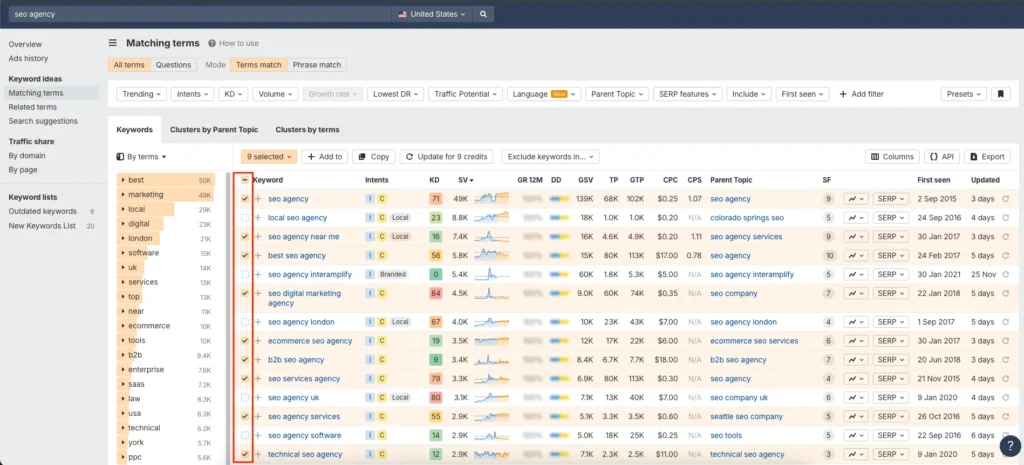
4. Choose Keywords From the List
Review the keyword suggestions and select the ones that align with your SEO goals. I usually filter by search intent, keyword difficulty, and traffic potential before selecting anything.
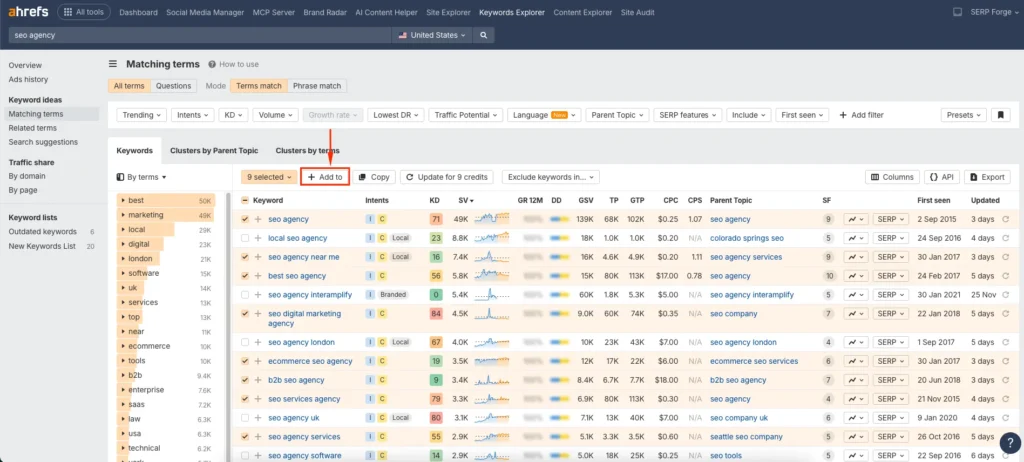
5. Click on the “Add to” Option
Once you select the keywords you want to save, click the Add To button at the top of the keyword list.
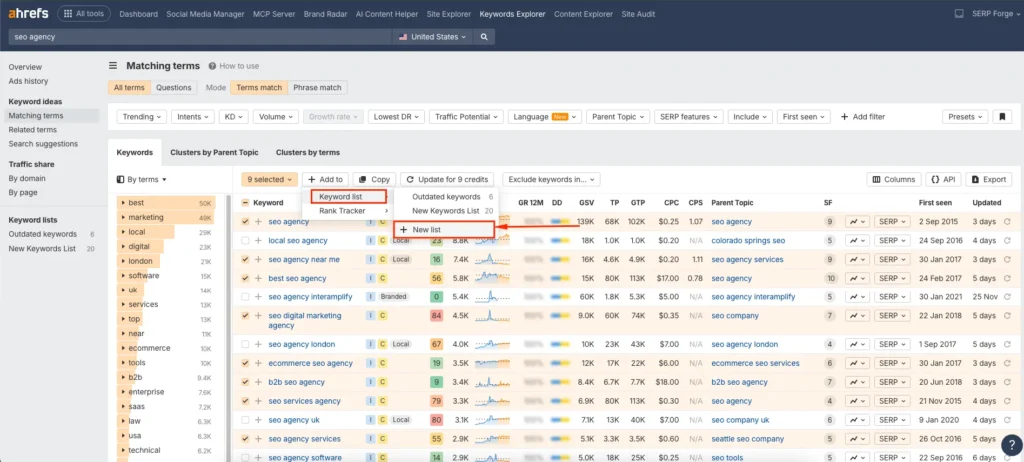
6. Click on Keyword List and Then New List
After clicking Add To, select Keyword List, then choose the option to create a New List.
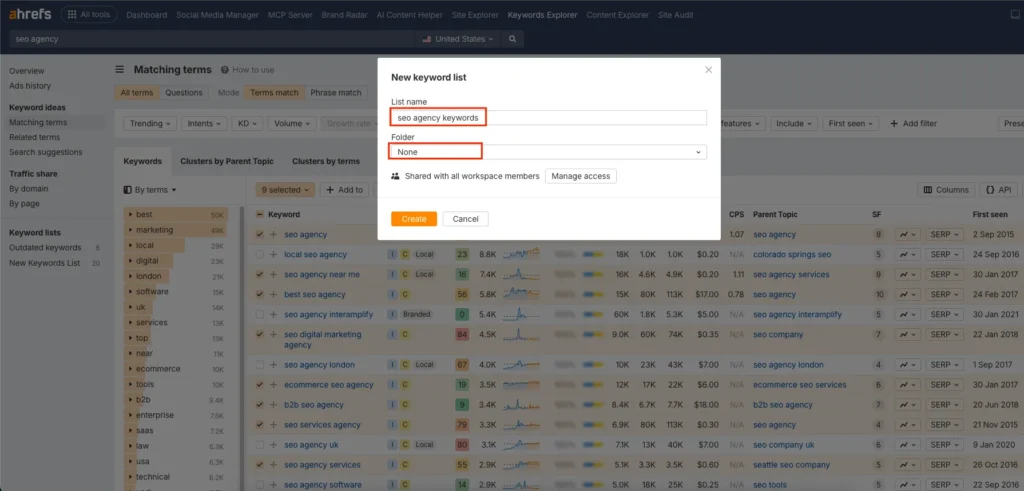
7. Give a Name to the Keyword List and Add It to a Folder
Give your keyword list a descriptive name so you can recognize it later. You can also place it inside a folder for better organization or keep the folder option set to None if you prefer.
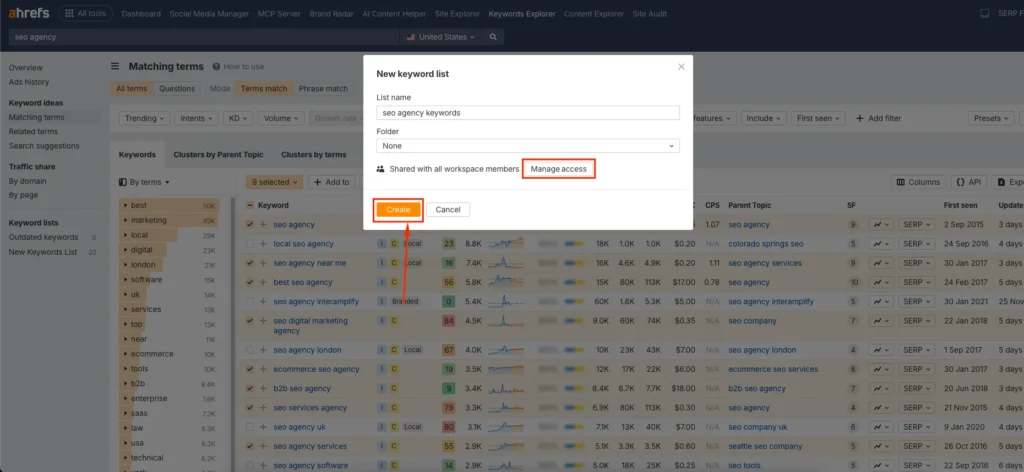
8. Give Access and Click Create
If you work with a team, you can give access to other users connected to your Ahrefs account so they can collaborate. Click Create when your list settings are ready.
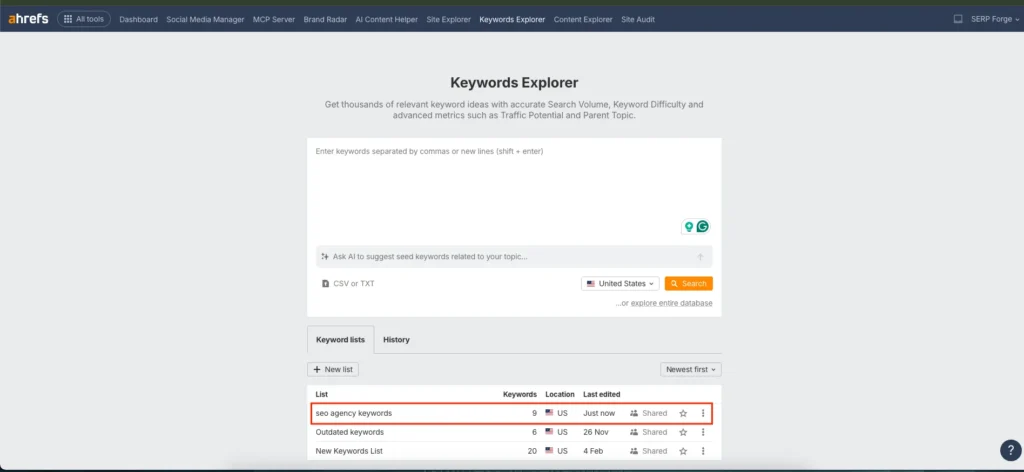
9. Go Back to Keyword Explorer
Return to the Keyword Explorer tool from the top navigation menu.
10. Look for the Keyword List You Created
Just below the keyword input field, you will see all your existing keyword lists, including the one you just created.
11. Click on the Keyword List Name to See Keywords
Click the name of your new keyword list. You can now analyze all saved keywords or export them for reporting, planning, or content mapping.
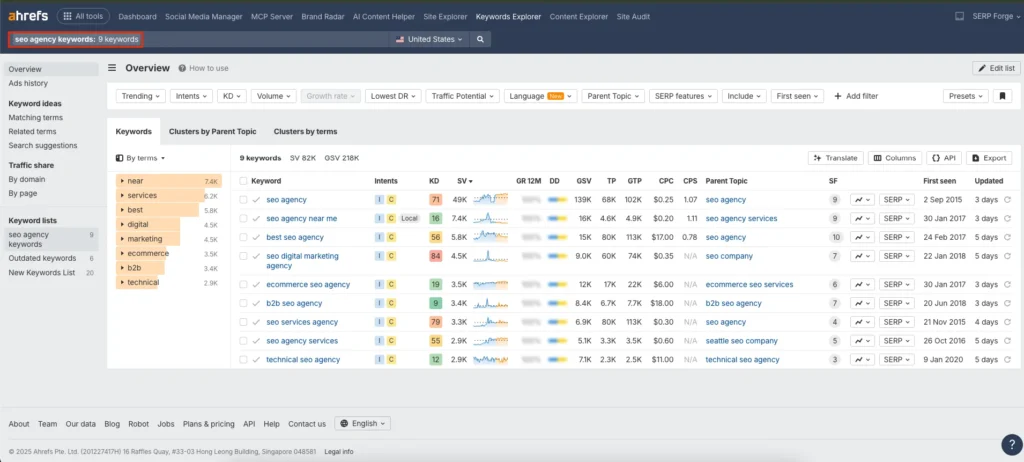
You can delete any keyword list that you consider outdated.
Conclusion
Creating a keyword list in Ahrefs is simple once you follow a clear process. Enter your main keywords, explore related terms, select the ones that match your intent, save them to a new list, organize them properly, and revisit the list later when you write or optimize content.
This workflow helps you stay consistent, improve topic clustering, and plan content more effectively.
Frequently Asked Questions
Can I add keywords from different reports into the same Ahrefs keyword list?
Yes. You can add keywords from Matching Terms, Related Terms, or any other Ahrefs keyword report into a single list.
Can I edit or remove keywords from a list after creating it?
Yes. You can open any keyword list and delete, rename, or add more keywords at any time.
Does Ahrefs allow exporting keyword lists to Google Sheets?
Yes. You can export keyword lists directly to CSV or Google Sheets for further analysis.
Can I create multiple keyword lists for different projects?
Absolutely. Ahrefs lets you create unlimited keyword lists, which is helpful when you manage multiple websites or content clusters.
Does creating a keyword list affect my keyword tracking?
No. Keyword lists are separate from Rank Tracker. You need to add keywords manually to Rank Tracker if you want Ahrefs to monitor their positions.

