


To add keywords to Rank Tracker for a project in Ahrefs, open your project and import the keywords you want to monitor.
Ahrefs Rank Tracker lets you track keyword positions across locations and devices, helping you measure ranking performance, identify trends, and monitor the impact of your SEO efforts over time.
I have been using Ahrefs for years, and adding keywords to Rank Tracker has always been one of the first steps I take when optimizing a website.
In this guide, I will walk you through the exact steps to add keywords to Rank Tracker in Ahrefs. You will learn how to set up tracking, choose accurate locations, organize keyword lists, and make sure the tool collects reliable ranking data.
Steps to Add Keywords to Rank Tracker in Ahrefs
1. Locate the Project Dashboard in Ahrefs
Start by logging in to your Ahrefs account. Once you’re inside, go to the Project Dashboard. Here you will see all your existing projects. Select the project where you want to add and track keywords for ranking performance.
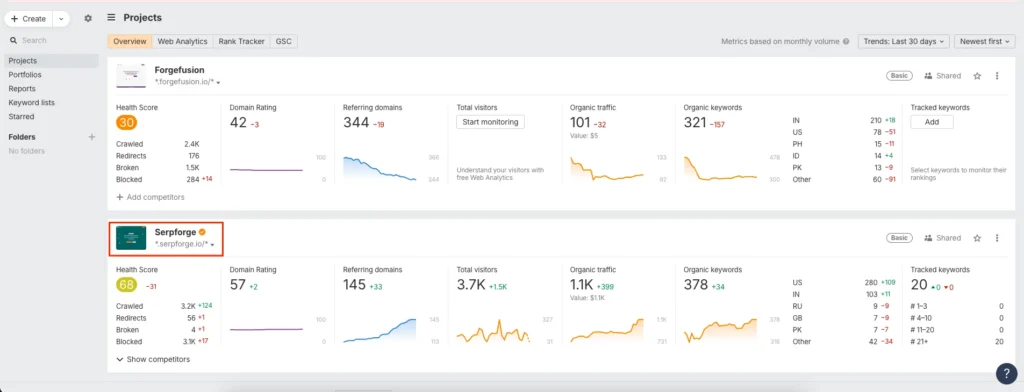
2. Click on “Tracked Keywords” from the Left Panel
Inside your selected project, look at the left-hand menu and find the “Tracked keywords” option. You can also click the keyword number displayed inside your project card. Both options open the Rank Tracker section for that specific site.
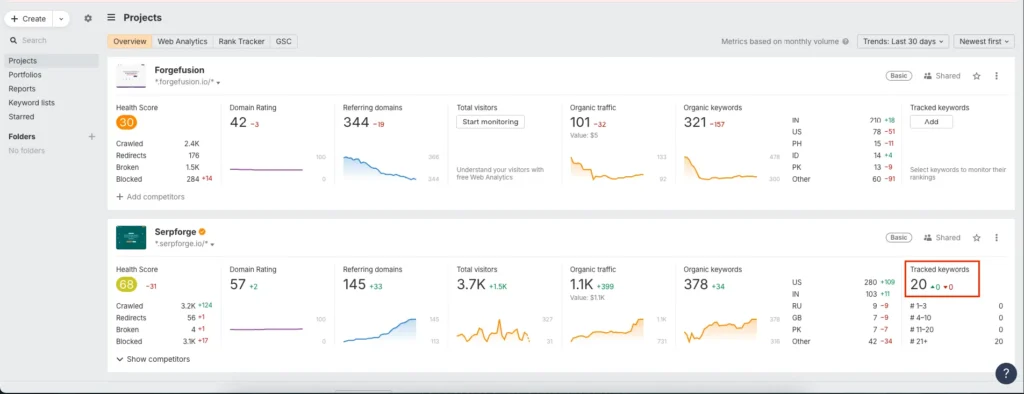
3. Click on “Add New Keywords”
Inside the Rank Tracker view, you will see an option labeled “Add new keywords.” Click it to begin adding fresh keywords you want Ahrefs to monitor. This is where you control what Ahrefs tracks in SERPs.
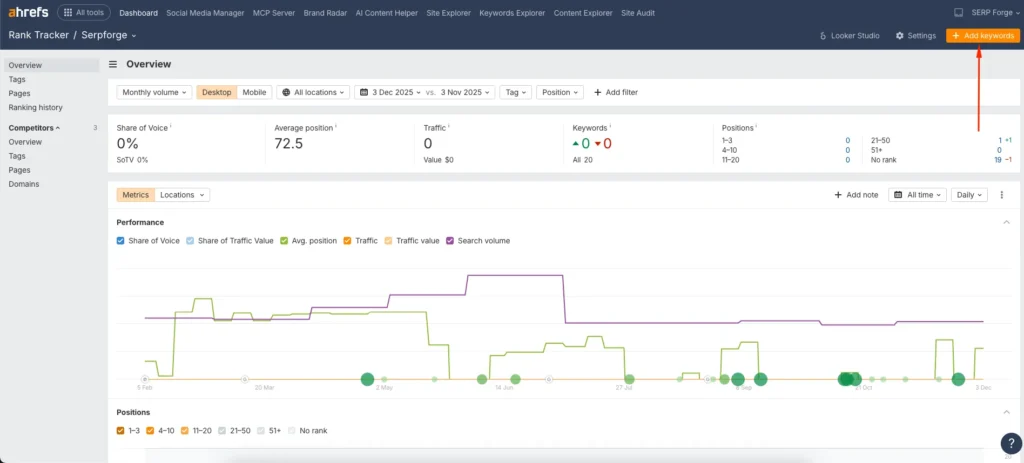
4. Choose the Location and Language
Select your target location. For example, you can choose the United States with English as the language.
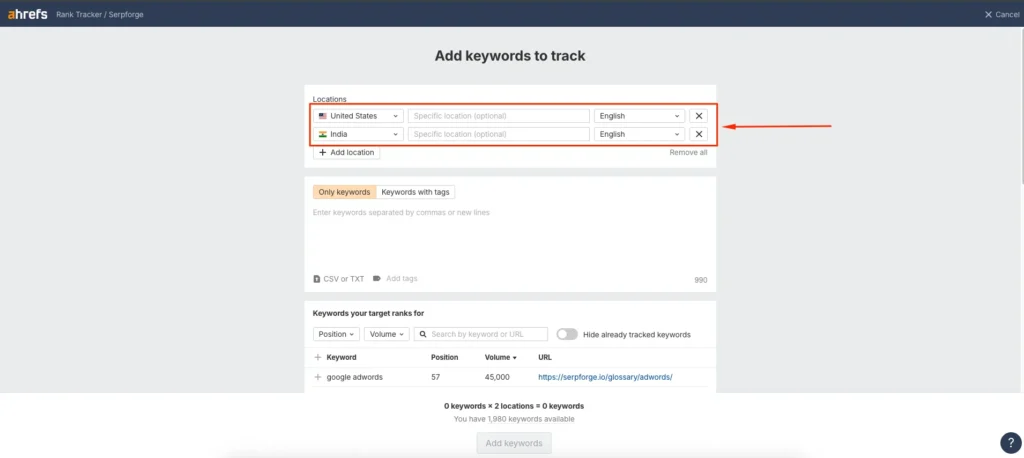
If your website targets multiple regions, you can add different countries for the same keyword. I often track the same keyword across several markets to understand local patterns.
5. Enter the List of Keywords You Want to Track
Add your keywords in the text field, one per line. You can paste a list directly or upload a CSV or TXT file if you already have your keywords prepared.
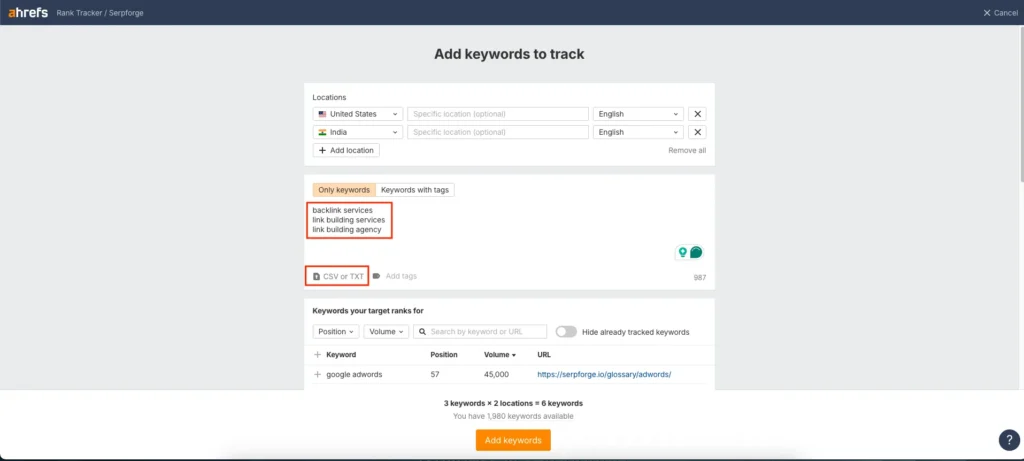
This is helpful when working with large keyword batches or when migrating from another tool.
6. Add the Keywords to the Project
Once your keywords and locations are ready, scroll to the bottom and click the “Add keywords” button.
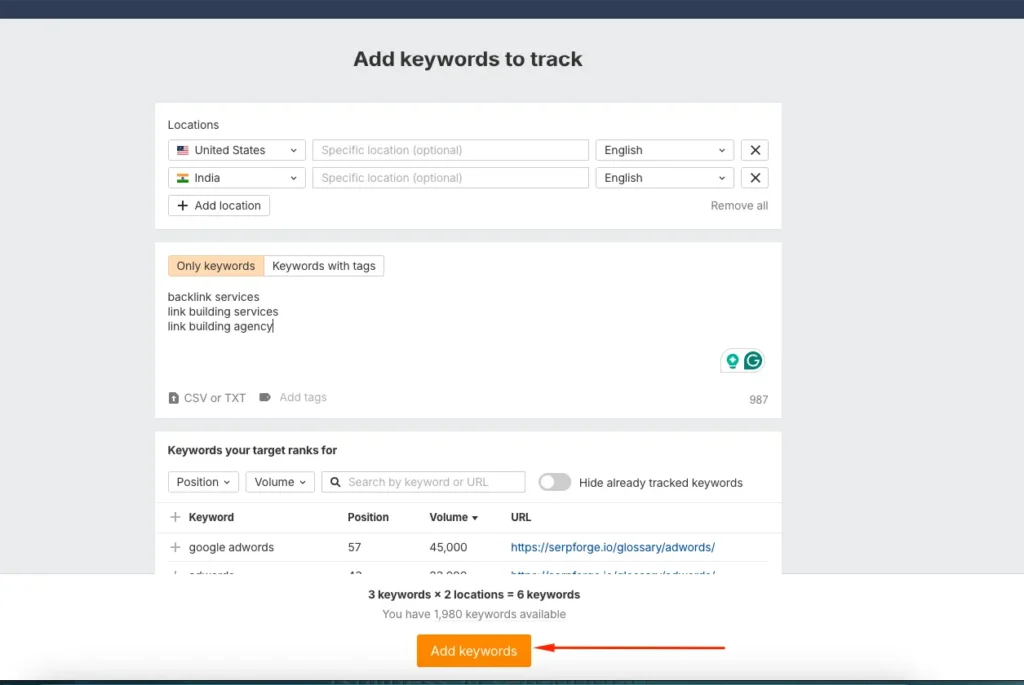
Ahrefs will begin tracking them and start collecting ranking data. You can revisit the Rank Tracker anytime to check position changes, visibility scores, traffic potential, and competitor comparisons.
Conclusion
Adding keywords to the Ahrefs Rank Tracker is straightforward, and it gives you valuable insights into how your pages rank in search results.
By following the steps above, you can set up accurate keyword tracking and monitor performance across different regions.
Once your keywords are added, Ahrefs keeps updating their ranking positions, which helps you make better SEO decisions based on real data.
Frequently Asked Questions
Does Ahrefs automatically track all my keywords?
No, Ahrefs only tracks the keywords you manually add to Rank Tracker. It does not track every keyword your website ranks for unless you enter them.
How often does Ahrefs update keyword rankings?
Ahrefs typically updates Rank Tracker data daily, though update frequency can vary based on your plan and project settings.
Can I add competitors when setting up keyword tracking?
Yes, Ahrefs allows you to add competitors so you can compare keyword rankings and visibility against similar websites.
What file formats can I use to upload keywords in bulk?
You can upload keywords using CSV or TXT files. These formats are ideal when handling a large keyword list.
Can I remove or edit keywords after adding them to Rank Tracker?
Yes, you can remove keywords or adjust the tracking settings anytime inside the Rank Tracker dashboard.

