


After GA4 replaced Universal Analytics, I personally struggled with its learning curve, complex event setup, and crowded interface.
While GA4 is powerful, it often feels excessive when you simply want clear traffic insights. That is when I started using Ahrefs Web Analytics on my own websites.
Ahrefs Web Analytics offers a privacy-first, cookie-free, and lightweight analytics solution that focuses on what actually matters, such as visitors, traffic sources, and top-performing pages.
In this blog, I will explain how to use Ahrefs Web Analytics step by step, what makes it a practical GA4 alternative, and how you can apply it confidently based on real usage experience.
Steps to Use Ahrefs Web Analytics
Step 1: Log in to Your Ahrefs Account
Start by logging in to your Ahrefs account. From the top navigation menu, locate all tools and click on Web Analytics.
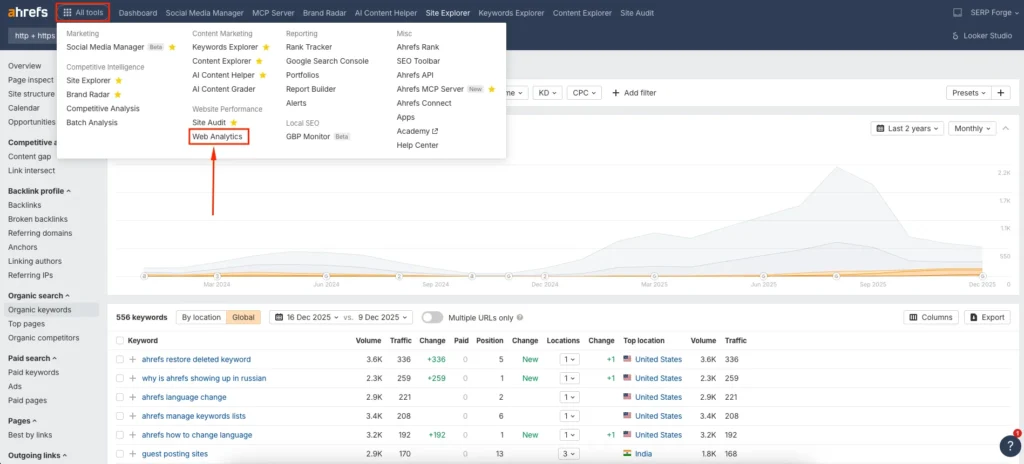
This feature is available even if you are not actively using other Ahrefs SEO tools, which makes it accessible for pure analytics use. Once inside, you will see a clean dashboard prompting you to add a website.
Step 2: Add Your Website Property
Click on the Create Project button and enter your domain name. Ahrefs allows you to track domains without forcing subdomain or URL-level complexity, which I found helpful when managing multiple sites.
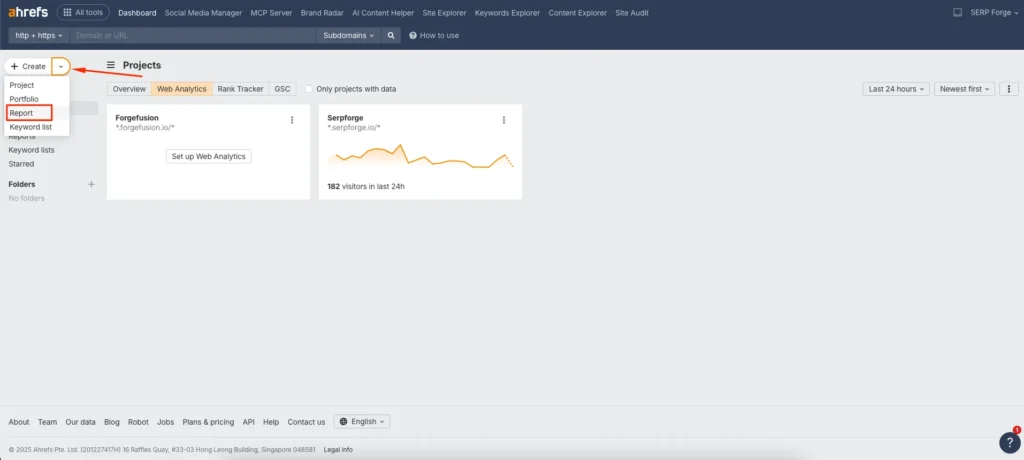
After adding the domain, Ahrefs will generate a tracking script specifically for your website.
Step 3: Install the Ahrefs Tracking Script
Copy the provided JavaScript tracking code from the dashboard.
Paste this script inside the <head> section of your website. If you use WordPress, you can add it through:
- A header injection plugin
- Your theme’s header file
- A tag manager setup if you already use one

Once installed, return to the Ahrefs dashboard and wait a few minutes. From my experience, data usually starts appearing within a short time without any manual verification steps.
Step 4: Verify Data Collection
After installation, open the Web Analytics dashboard and check whether visits are being recorded.
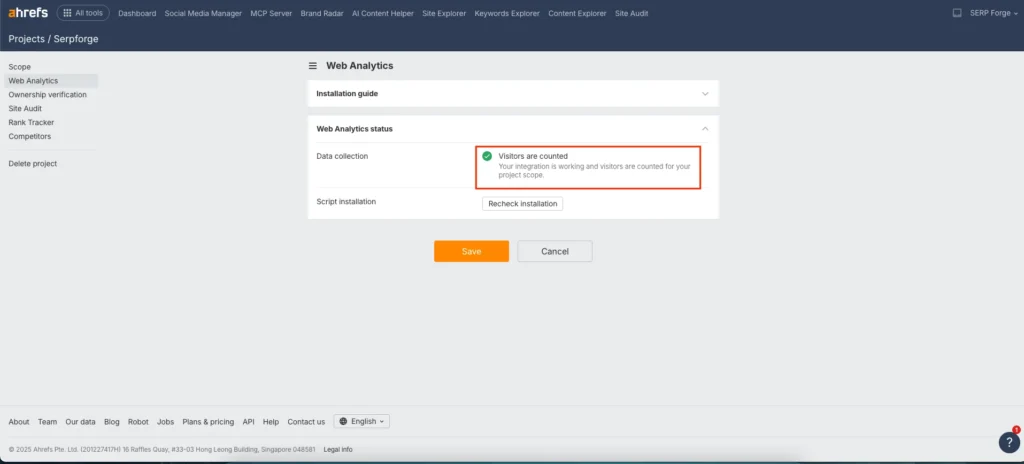
You will start seeing:
- Total visitors
- Pageviews
- Referring sources
- Top pages
I usually visit my own site from a different device to confirm real-time tracking. This quick check helps ensure the script is working correctly.
Step 5: Analyze Traffic Sources and Referrers
Navigate to the Traffic sources section to understand where visitors are coming from. Ahrefs clearly categorizes traffic by:
- Direct visits
- Referral traffic
- Search traffic
- Social sources
- AI Search
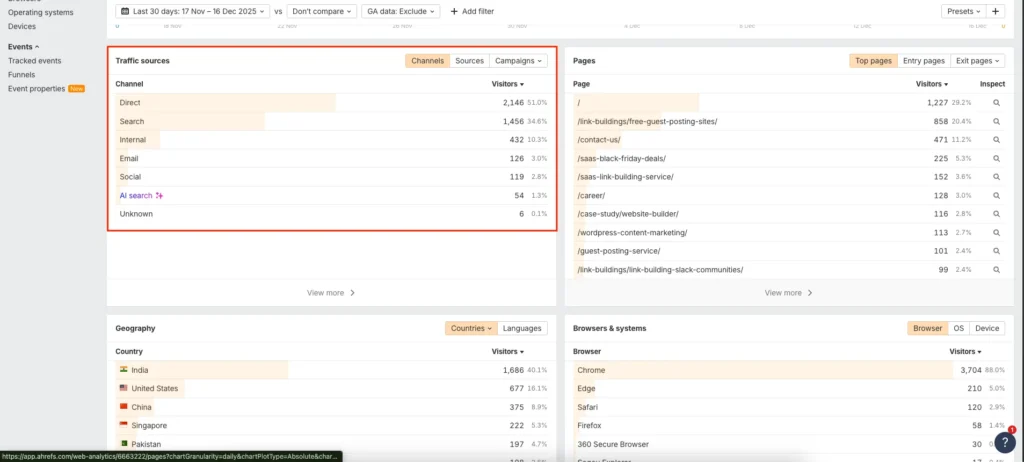
Unlike GA4, this data is presented in a straightforward format, which makes it easier to spot patterns without building custom reports.
Step 6: Review Top Pages and Visitor Behavior
Click on the Pages report to identify which URLs attract the most visitors.
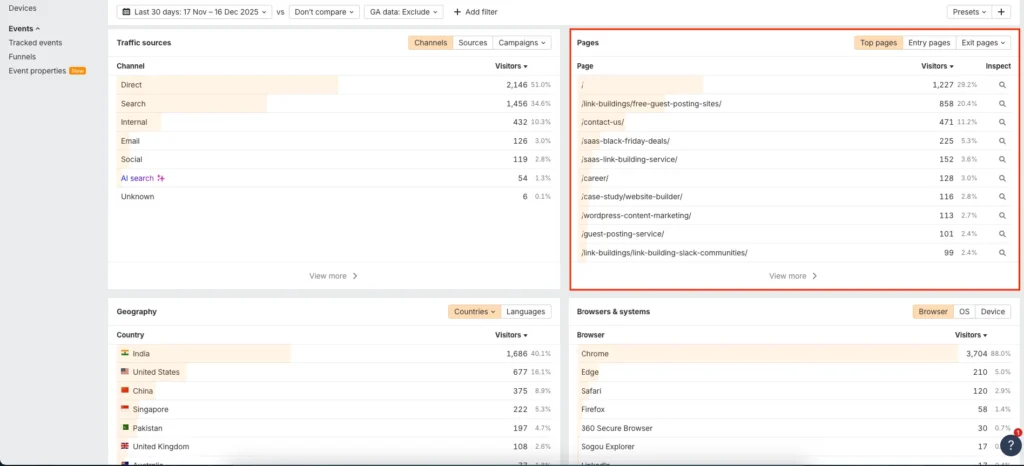
This section helped me quickly evaluate:
- Which blog posts perform best
- Which landing pages attract consistent traffic
- How new content performs after publication
You also get average visit duration and bounce-related insights without dealing with event configuration.
Step 7: Monitor Trends Over Time
Use the date range selector to compare traffic across different time periods.
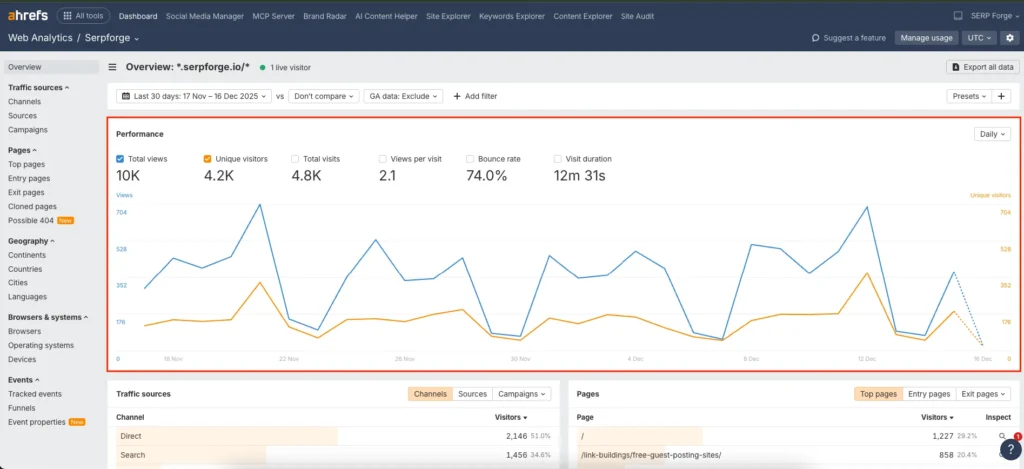
I often use this feature to measure:
- Traffic changes after content updates
- Performance after SEO improvements
- Impact of backlinks or campaigns
The trend graphs are simple but effective, focusing on clarity rather than excessive customization.
Conclusion
Ahrefs Web Analytics works well as a GA4 alternative for website owners who want clear, privacy-focused, and easy-to-understand analytics without technical complexity.
Based on my hands-on use, it delivers reliable traffic insights, removes cookie-related concerns, and eliminates the reporting friction that many users face with GA4.
While it does not replace advanced event tracking or e-commerce analysis, it excels at everyday traffic monitoring and content performance evaluation, making it a practical choice for bloggers, SEO professionals, and small website owners.

